
Is the final form of a Coding Agent TUI + GUI?
/ 5 min read /
Before we start, here’s a quick primer for friends who aren’t deep into AI and programming:
TUI: Text-based User Interface, interacting with users mainly through text and symbols in the terminal/command line.
GUI: Graphical User Interface, interacting through graphical elements like windows, buttons, icons, menus etc., supporting mouse usage. The browsers and desktop software we use daily are GUI applications.
Codex: A coding agent. Previously it only had a CLI version, and on 2026-02-03 it released its own desktop app.
Now for the main content:
Just now, OpenAI released the Codex desktop app. After a day of hands-on experience, my productivity has genuinely improved. Compared to the TUI, the GUI offers much better interaction and parallel processing capabilities. The desktop app can display more information and provides a more user-friendly experience, which naturally expands its audience. Let’s take a closer look at what the Codex desktop app can do!
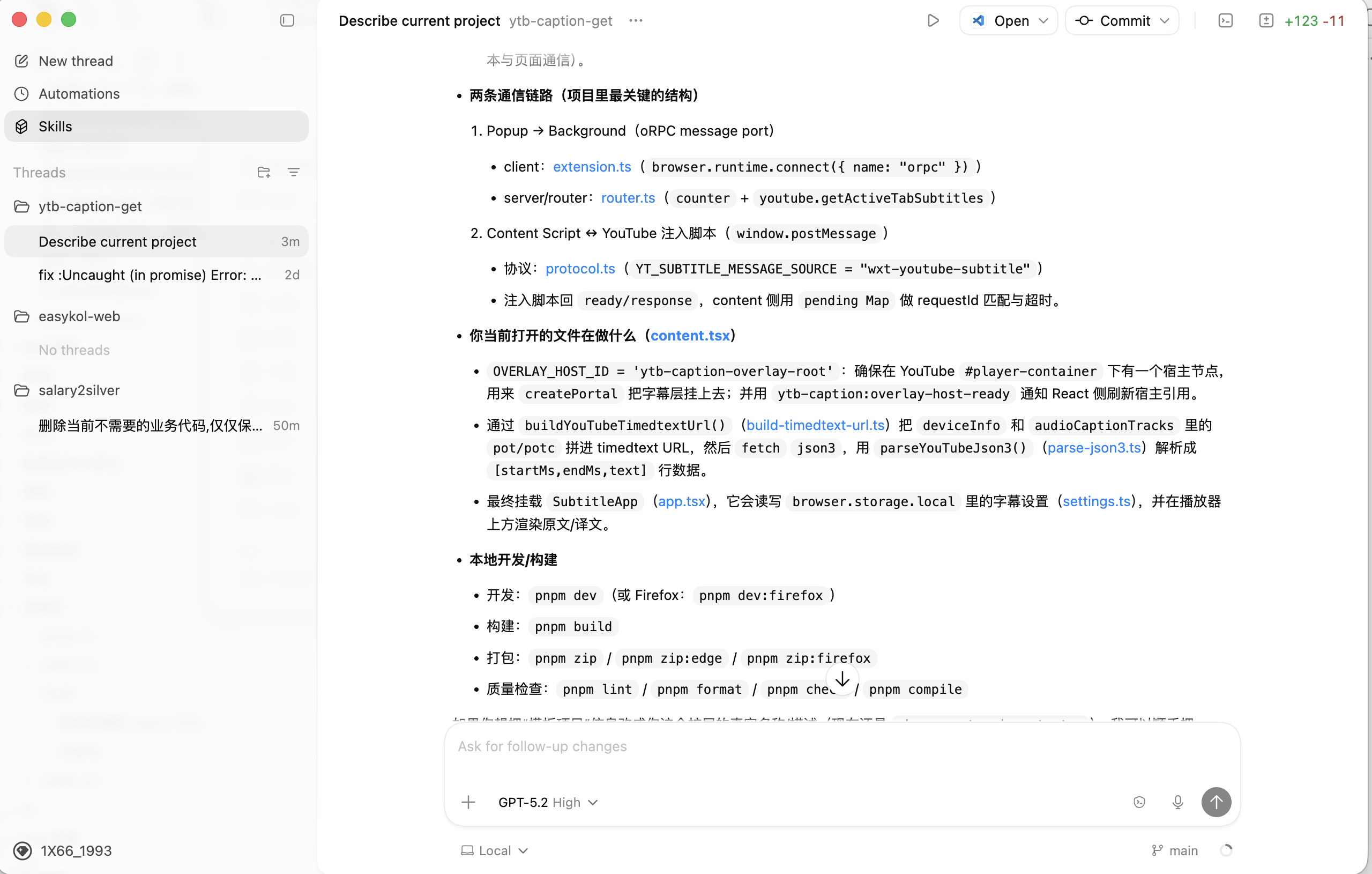
If you’re logged into Codex, it should have automatically loaded your data and then prompted you to select a project to work on. Once you enter, it opens your previous conversation history. Let me walk through the features based on the screenshot above:
-
Top-left corner: You can create new threads. Here you can open new projects to develop, meaning you can centrally launch multiple projects for parallel development.
-
Below that are Automations and Skills: one is scheduled tasks, which can automatically trigger actions based on conditions; the other is the recently popular Agent Skills, which can integrate SOPs to help quickly solve domain-specific problems, e.g., using
frontend-designto build beautiful frontend pages. -
Below that is the conversation thread list: your conversation history. When you switch to another conversation while one is still processing, it shows a loading indicator, and a notification when it succeeds. This makes it easy to manage multiple threads simultaneously.
-
Bottom-left shows user info. Clicking it takes you to the settings page (you can also open it with
Command + ,). The settings page offers many options; a particularly useful one is shown below — it essentially enables “YOLO mode”, letting Codex work freely without constantly asking for your confirmation.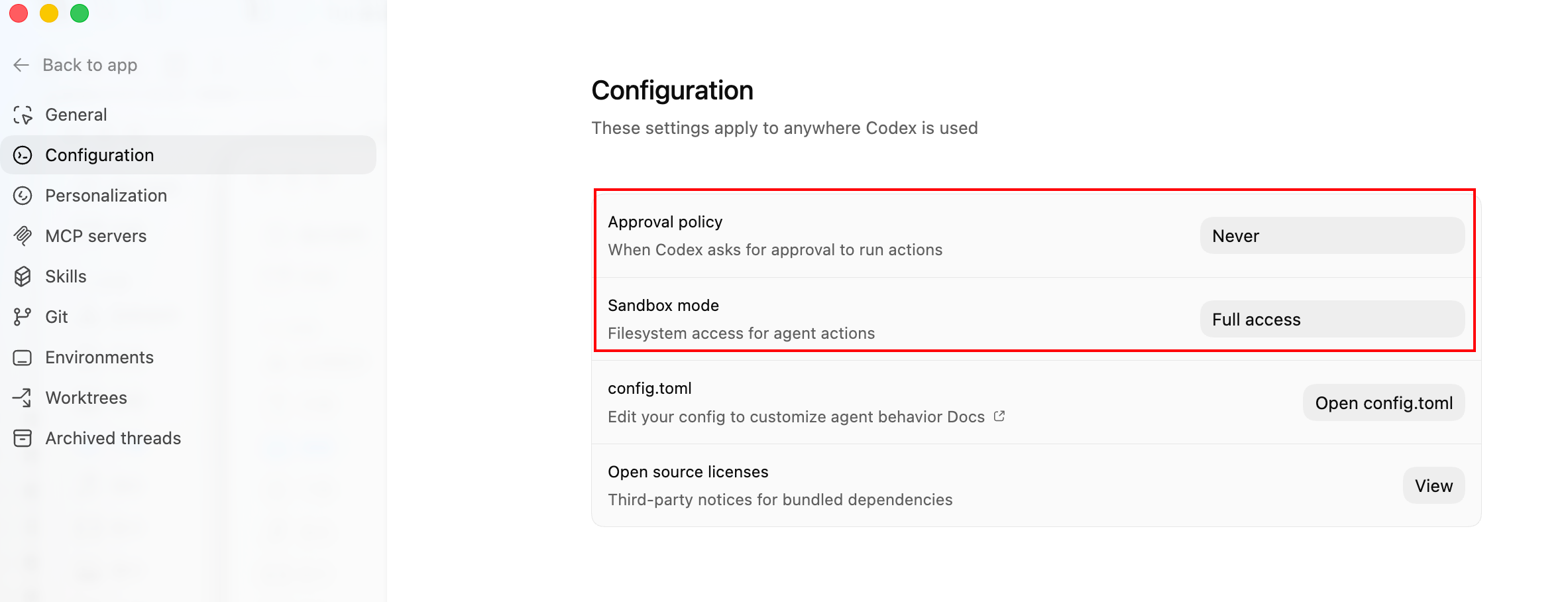
The right side has a top-middle-bottom layout. Let’s start with the nav bar at the top:
- Nav: On the left it shows the conversation name and project name. On the right are some action buttons: a Run button to execute the current project (you’ll need to configure the script yourself); a button to open the code editor; a quick way to create commits and PRs; and a diff viewer to clearly see what code changes the AI made.
- The middle area is the coding agent’s conversation output area, similar to how submitting a prompt in the CLI triggers AI output.
- At the bottom is the AI conversation input box. Here you can switch the model for the current conversation, attach images or files, enable plan mode, and grant full computer access. In the official video demo, voice input is also supported — great for lazy folks who prefer to talk rather than type. At the very bottom of the input area there are also very practical features: view/switch the current branch, enable worktree mode, and see the current context usage to avoid running out of context and degrading output quality.
I really like this UI — clean, minimal, and intuitive. OpenAI’s products are definitely top-tier in terms of user experience. Oh, and to celebrate the Codex desktop launch, OpenAI has doubled the quota for all paid users so they can enjoy it even more freely. What a generous move!
Now let’s talk about the downsides I’ve noticed so far:
- Although you can reference project files using
@, there’s no file tree showing the current project structure. After all, with a large project, who can remember every filename? Also, the old issue persists:@doesn’t work with folders. - There’s no integration with the CLI. While the GUI is great, sometimes the CLI is more convenient, and the conversation lists on both ends aren’t synced.
- Performance isn’t great — it’s quite memory-hungry, especially when running multiple projects concurrently.
I checked the source code and found it’s built with Electron. So if you’re still debating between Electron and Tauri, now you know which one they chose! Overall, the experience is still very good. The desktop app is built on top of the Codex CLI, which ties back to the headline: coding agents (and probably other agents in the future) should be developed as CLI first, then GUI. And in a future where multiple agents call each other, CLI is definitely the better interface to expose.
Right now, I primarily use Codex for development. It might be slower, but it gets things right on the first try. Claude Code is faster, but when it comes to fixing bugs and solving complex problems, I personally think Codex does a better job. Thanks for reading — this article is entirely hand-written, summarizing real coding experience. If you found it helpful, consider following me and tapping “在看” before you leave! I’ll keep sharing AI-related news and insights.