
Cursor Usage Experience: Packed with Practical Insights
/ 7 min read /
Table of Contents 目录
Cursor is a VSCode-based AI-first editor. If you haven’t tried it yet, I highly recommend reading this, because Cursor is really changing the rules of the programming game. Before getting to know Cursor, think about what we do daily in programming. In my daily development, the majority of time is spent on:
- Writing code
- Testing code & validating results
- Reading previous code
- Looking up documentation (e.g., MDN)
- Writing documentation
- Reviewing code, committing
- Optimizing code, refactoring code
…maybe some small things. All of the above can be sped up with Cursor. Let’s take a look at Cursor!
Its Capabilities
Cursor helps us in these fundamental ways:
- Tab autocomplete: generate, fix, refactor code
- Inline prompt (cmd + k): generate or modify local (current file) code
- Chat (cmd + L / option + command + B): add features, broader code conversation
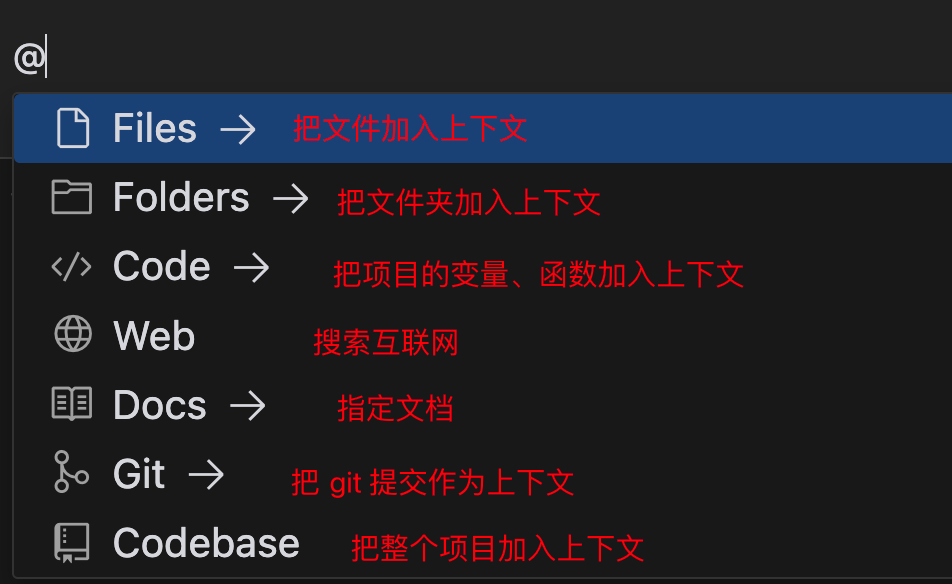
- @ symbol: used to reference things, essentially providing more relevant context for more accurate responses
So, the Tongyi Lingma I used before also has these features, but Cursor is different. The differences are:
- Interaction: Besides autocomplete, it can also modify the current code (think bug fixes, refactoring), and it can predict where your cursor will move, letting you truly immerse yourself in coding.
- Model: It uses the currently strongest Claude 3.5 Sonnet.
- Feel: When using other tools in VSCode, there’s a sense of fragmentation, but not with Cursor. I feel the AI capability blends well with the editor, allowing us to immerse ourselves more in AI programming and truly achieve AI pair programming (like sweet duo queue with AI, never coding alone).
- Output: Most importantly, the output. Over this period of use, the results from Cursor are basically what I wanted. Occasionally there are small issues, but I can quickly find the cause and fix them manually.
You might think that’s all, but it’s just the beginning. Let’s look at Cursor’s true killer features:
- Terminal Chat
For frontend developers, many Linux commands aren’t used often, and even when we need them, we can’t always remember them and have to look up documentation. In Cursor, we can directly press cmd + k in the terminal to bring up a dialog, describe what we want to do, and ask for the corresponding command. The AI helps us find the command and inputs it into the command line.
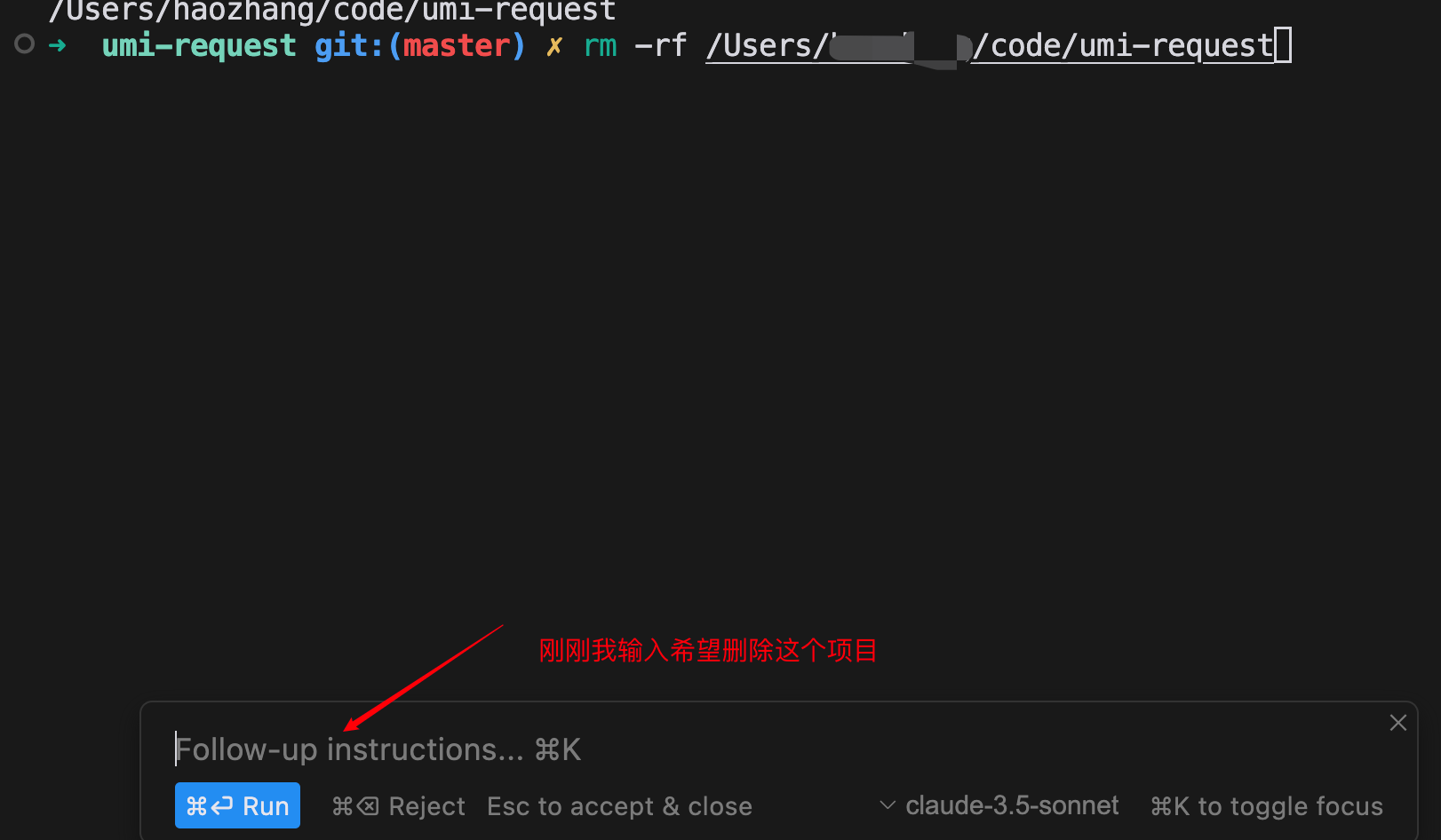
Additionally, we can use it to generate commit messages. First, type ‘git diff | cat’ in the terminal to get recent changes, then cmd + k, and in the prompt enter ‘git commit message’. Cursor will generate a git commit command with a commit message.
- Composer (beta, needs to be enabled)
Composer is similar to bolt.new (a tool that generates projects from a description). You give it requirements, and it automatically creates files (and folders) to implement them. How to use it? See the docs. Later, I’ll use the Composer ability to share a project and demonstrate its power.
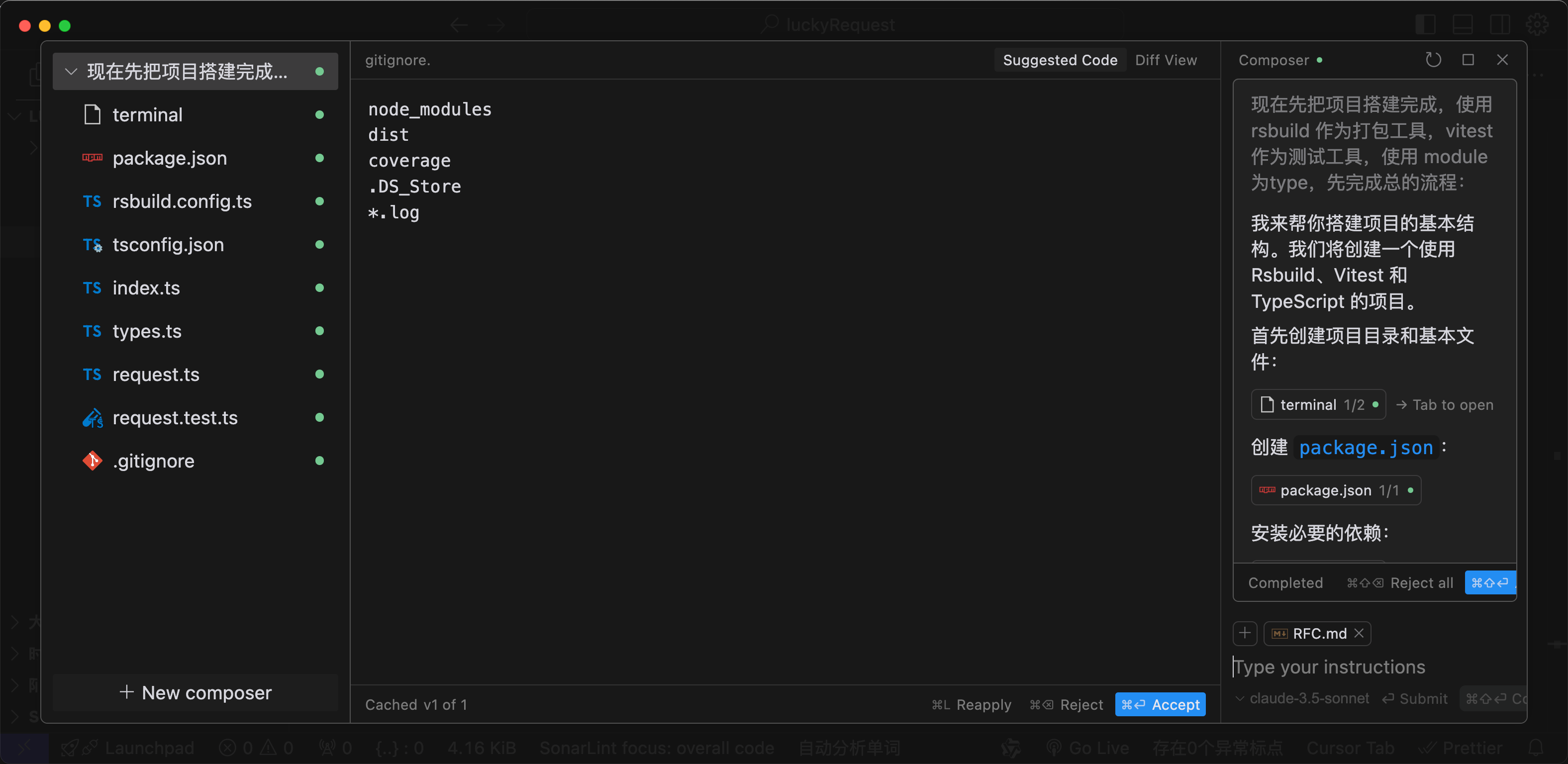
More details: https://cursor101.com/zh/article/cursor-composer
- Documentation capability
In Cursor Setting > Features > Docs, we can add documentation we use daily, e.g., MDN docs. Then, instead of going to the browser, we just @ select Docs in the dialog to query the documentation we need.
- Code review (beta, needs to be enabled)
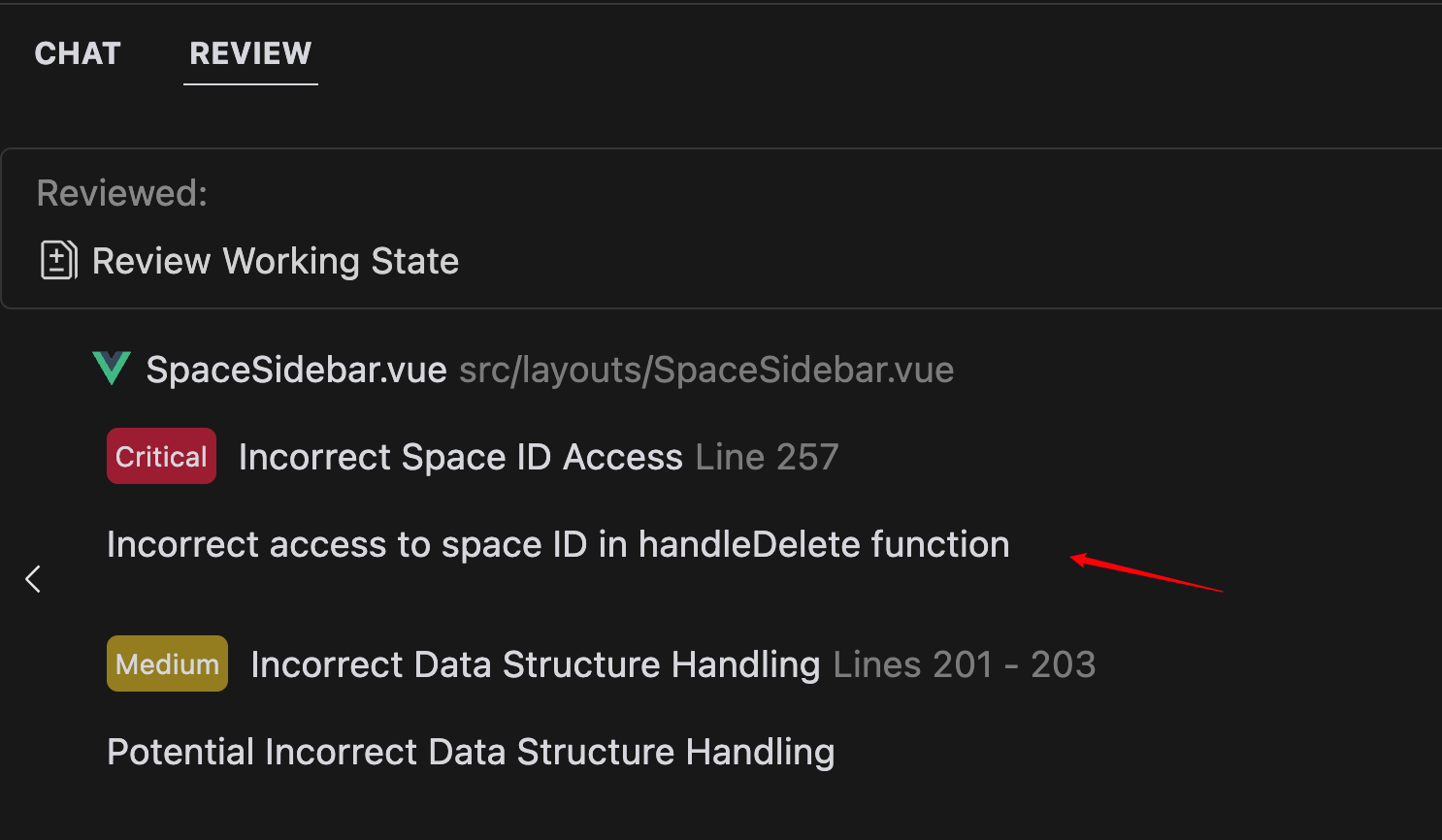
Review might not be that powerful right now. My approach is to ask multiple times, about three times, to ensure potential issues are found by the AI, and then do one final review myself.
- Powerful and practical @ symbol
Whether in a standalone dialog or an inline code dialog, typing @ will show you this:
- AI Fix
When there’s an error in code, hovering will show an AI Fix button. Or if there’s an error in the terminal, selecting the error shows an Add to Chat button. We can then discuss the error in the chat.
- Predict your next move
It guesses what you’ll do next and places the cursor in the right position, so you truly tab all the way.
Here are some rules I haven’t tried yet:
- Custom Rules (AI rules)
We can create a .cursorrules file in the project root to define custom rules. There’s a dedicated community: https://cursor.directory/, with practical rules we can copy and use.
- .cursorignore
Similar to .gitignore, defines what Cursor should not read, ensuring security.
Use Cases
- Learning source code, new technologies, frameworks, etc.
With Cursor’s powerful capabilities, we can pull a source code into Cursor and incrementally ask questions about the project. When we need to ask about programming concepts, get code suggestions and best practices, or debug and troubleshoot, we can use cmd + L to bring up the dialog and ask continuous questions.
-
Building projects, writing project documentation
-
Refactoring code
-
Using @ Docs capability, building your own knowledge index
-
Writing small tool websites, quickly turning ideas into reality (e.g., online tool libraries, navigation sites). This is a blessing for product managers with ideas—they can quickly make them real.
Some Thoughts on Cursor
Current criticisms of Cursor include:
- It’s useless for complex projects, and can even make things worse.
- The code quality produced by Cursor is low.
But no matter what, Cursor is a tool. Its core is to improve our efficiency. I treat it like a hired junior/intermediate engineer. So before asking it to complete a task, I’ll definitely tell it in detail how to do it, and use the @ file capability to give it only the relevant context, preventing inaccurate responses due to too much context (i.e., hallucination). So three abilities are crucial when using Cursor:
- Asking ability: Cursor is essentially chat-based. We solve problems and get what we want through conversation. Clearly describing the problem is the foundation. I recommend reading “How to Ask Questions the Smart Way.”
- Requirement breakdown ability: Ability to break complex problems into simple ones, decompose big requirements into small ones, then clearly describe each small requirement to Cursor, letting it handle one small task at a time.
- Strong knowledge base and problem-solving ability: Cursor generates responses based on our questions (descriptions). We must know how to implement something and be able to describe it clearly. If there are small errors in the result, we can find and fix them ourselves.
Oh, and understanding how AI works is also essential, so we can use it better. Treat AI as a developer you hired; the more you understand it, the more you can leverage it.
So how powerful Cursor can be really depends on the person. The Cursor in the hands of an expert and the Cursor in the hands of a junior developer are two different products.
Comparison with Windsurf
Windsurf is similar to Cursor—a VSCode-based AI editor. It’s a product under Codeium.
Official site: https://codeium.com/windsurf
According to the official description, Windsurf is smoother in experience and more friendly for complex large projects. It makes flow its core design philosophy, providing a more coherent development experience. I tested it briefly, and in the scenario of writing new features using Write mode, it creates needed files and implements features more smoothly.
If I had to choose, I’d still go with Cursor for now.
How to Get Premium for Free
Cursor: It’s simple. Cursor offers a 14-day trial membership for new users. Cursor accounts can use Google accounts. So after the trial expires, we can use the ability to create sub-accounts under Google email (https://mail.google.com/mail/u/0/#inbox) to achieve free Cursor membership.
Windsurf (free membership link: https://codeium.com/offers?offer_code=codeium-thanks-you): It’s currently in a promotional phase, offering two months free membership, and uses the Claude 3.5 Sonnet model.
Summary
Common tips (source from the internet: https://x.com/LinearUncle/status/1841703117865550038)
.webp)
Products like Cursor are truly disrupting the development model. Now we can do everything in one editor like Cursor, and we can focus more on the business, reducing repetitive code work. The energy we save can be used to:
- Write more standardized code
- Make our development process more standardized. If we truly let Cursor do one small requirement at a time, then after each completion we commit and submit a PR, we avoid the problem of a PR being too large.
- Have more time to tackle challenging things and improve ourselves.
- Break free from basic CRUD and think.
If you really use Cursor, you’ll find code being written by AI, and you’ll feel like “Oh no, I’m about to be replaced.” Yes, that’s how I feel. The best way to face change is to embrace it and join it, so you can find a way to break through. AI is truly revolutionizing the programming industry, and it’s unstoppable.
If you found this useful, please give it a like. It really matters to me. Thank you!
References
Cursor101: https://cursor101.com/zh/