
Getting Started with WebStorm Development
/ 5 min read /
Table of Contents 目录
Hi everyone, I’m Lucky Snail. JetBrains’ WebStorm is now free for personal use. I’ve used WebStorm before, but for various reasons I switched back to VSCode. The main reasons were that WebStorm’s themes made me uncomfortable reading code, and it was very laggy on low-end devices. If you haven’t used WebStorm before, follow me to quickly get started with WebStorm for project development.
Download and Installation
Go to [Download link] and click download. After it finishes downloading (2.29 GB — that size alone stops some people from trying it and pushes them to VSCode), install it. Once opened, you’ll see this:
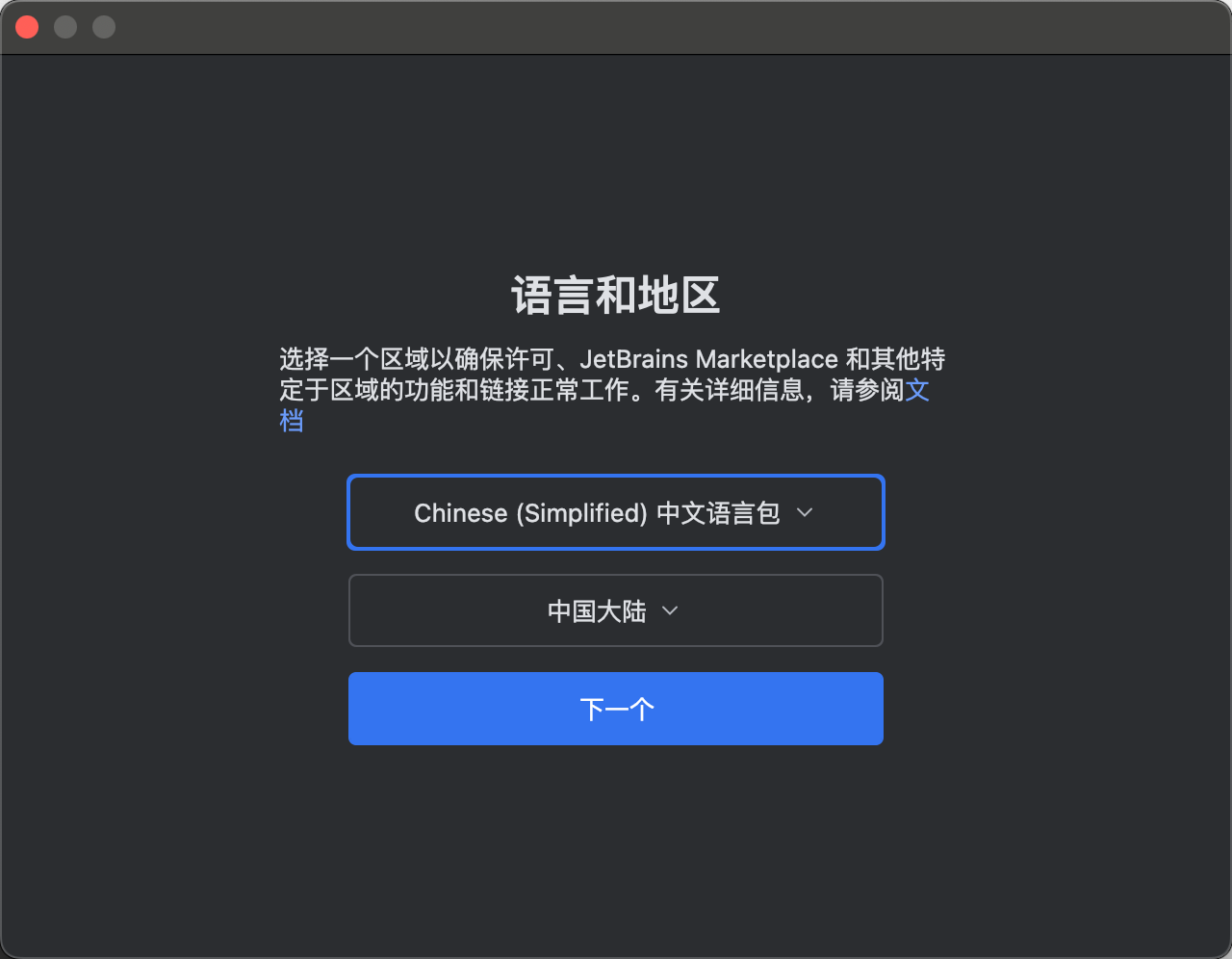
Keep clicking “Continue” until you reach the login screen. Choose non-commercial use, then log in or register.
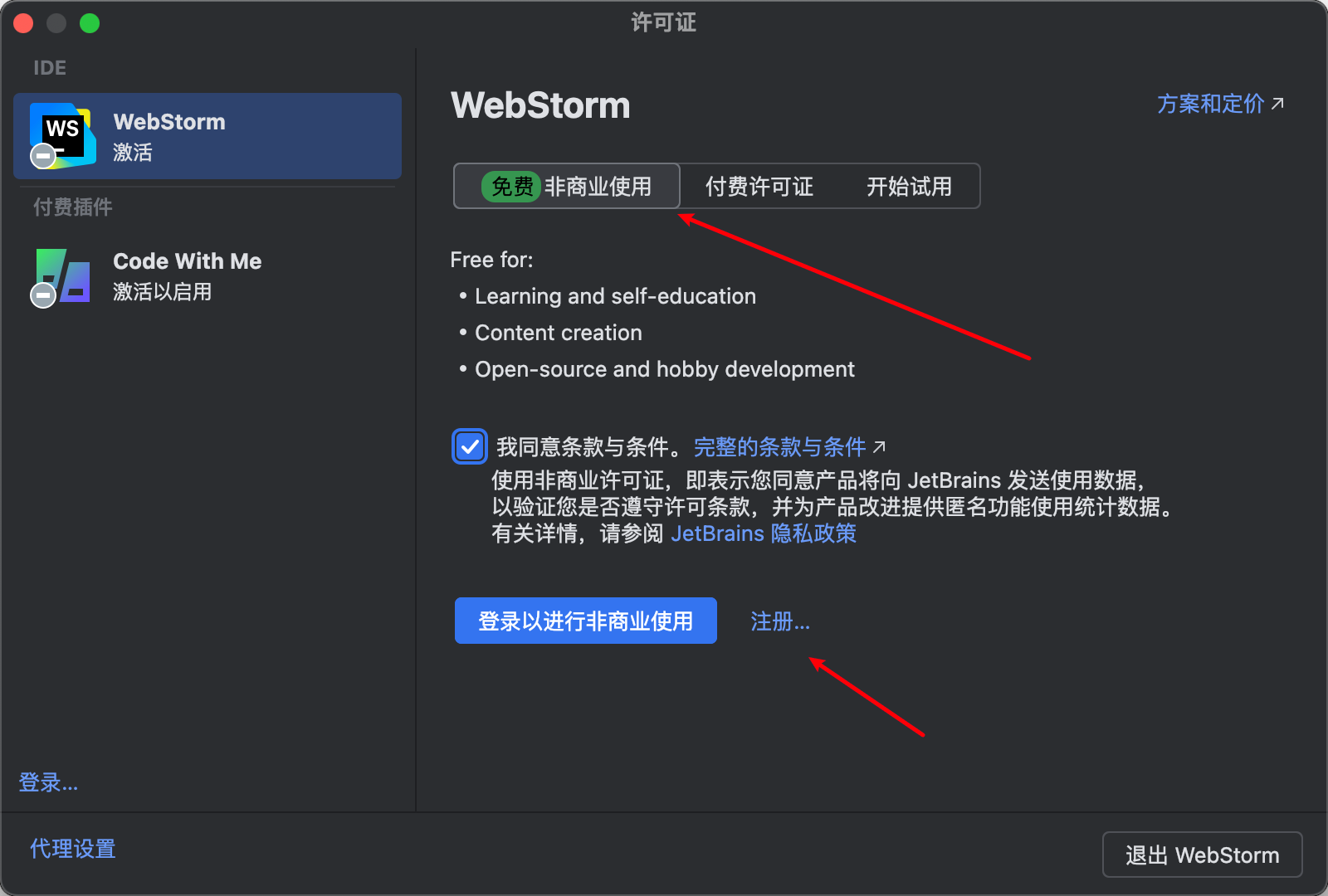
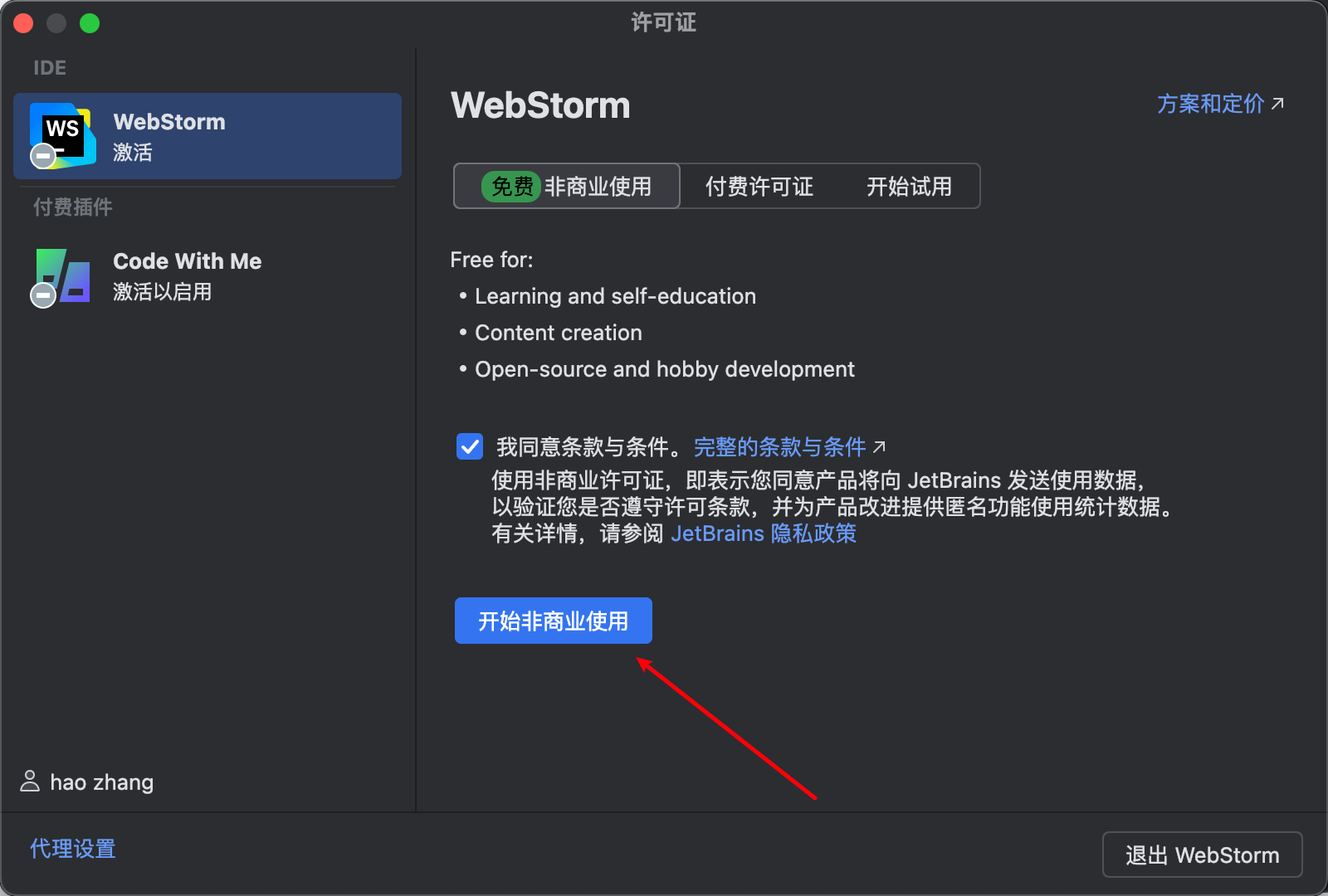
Then just click “Non-commercial use” and you’re good to go!
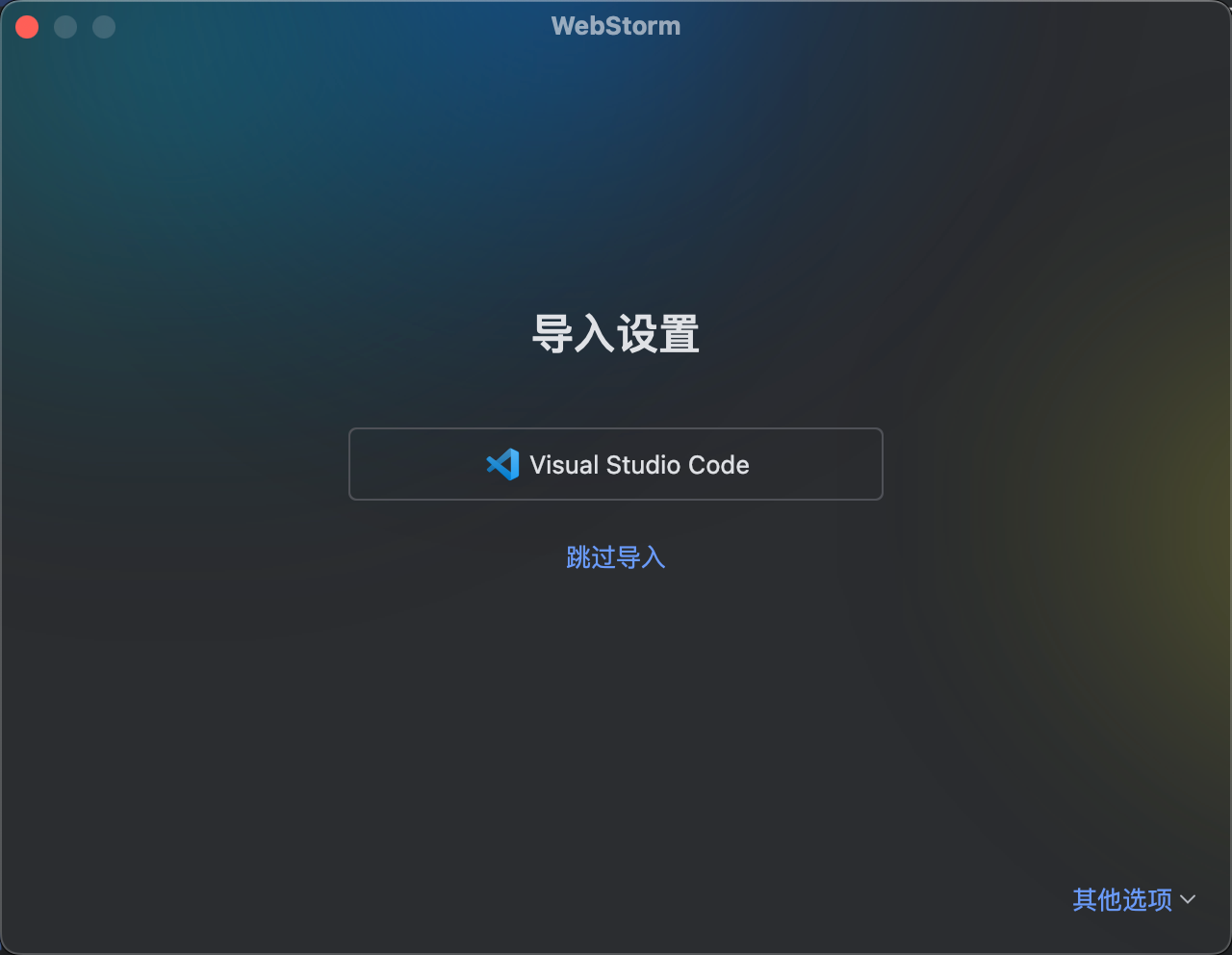
It even thoughtfully allows importing VSCode settings — painless migration if you’re switching from VSCode to WebStorm.
Now you’re on the real home screen. If you have a project, open it; if not, create a new one. It also provides project templates, though in real development, few people probably use WebStorm’s built‑in templates.
Understanding the Layout
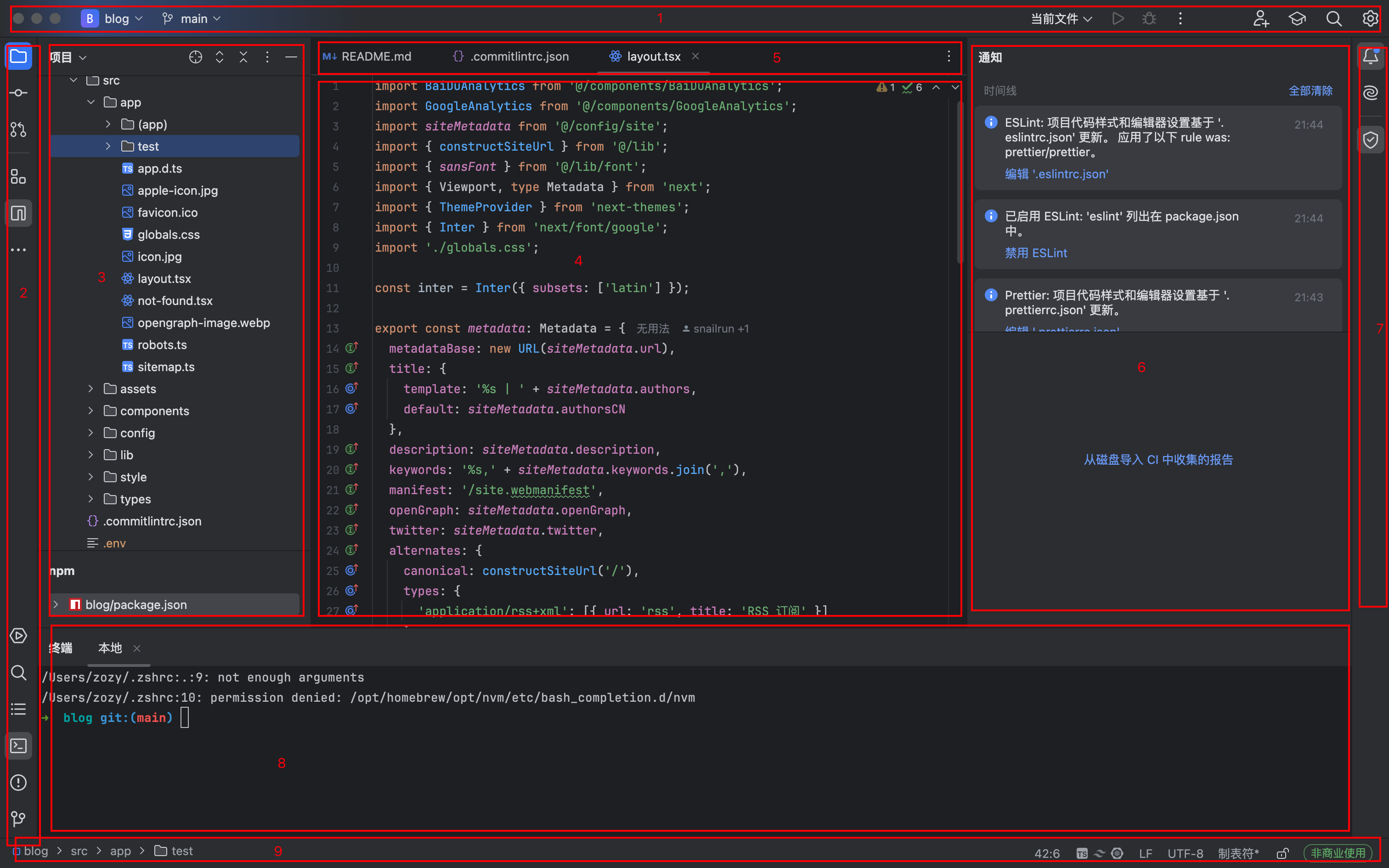
Here I opened my personal blog project. Gotta say, this new UI looks awfully familiar… Let’s go through each section:
- Editor navigation bar — close windows, switch projects/branches, open settings.
- Left sidebar — small icons controlling what’s displayed in zones 3, 6, and 8.
- Most commonly used for project file tree, but can also show other plugin panels via zone 2.
- Code area — its content can be adjusted via zones 2 or 5.
- All open files in the current editor, switch or close them.
- Plugin content display area.
- Small icons for notifications and plugins.
- Another content area — typically shows terminal and Git status.
- Status bar — left shows current location, right shows various states.
In daily development, zone 4 is used most of the time, and zones 3, 6, 8 are often hidden.
Another frequently used spot is this:

Here you can perform WebStorm actions, like creating/opening projects.
Useful Plugins
WebStorm bundles some plugins to boost development — Prettier, Tailwind CSS, SonarLint, etc. You can also install plugins that improve happiness:
- Theme plugins:
I love VSCode’s default dark theme: https://plugins.jetbrains.com/plugin/12255-visual-studio-code-dark-plus-theme . More: https://blog.jetbrains.com/webstorm/2022/12/best-webstorm-themes/#visual_studio_code_dark_plus_theme
- Translation:
Translation is excellent — it fulfills all my editor translation plugin dreams. Supports right‑click translation of camelCase words, translating a selected sentence (useful when reading source code), and a quick‑translate button in the top‑right corner (great for naming variables).
- Official list of ten must‑know plugins:
https://blog.jetbrains.com/webstorm/2020/05/plugins-for-webstorm-you-need-to-know-about/
Includes themes, progress bar, icons, shortcut hints, presentation assistant, etc.
Common Shortcuts
Most used: Save (⌘ + S), Undo (⌘ + Z), Redo (⇧ + ⌘ + Z)
- Double‑tap Mac ⇧ (Shift): Open search
- ⇧ + ⌘ + F: Find in files
- ⌘ + ,: Open settings
- ⌘ + ⇧ + +: Expand all
- ⌘ + N: New file; ⌘ + Delete: Safe delete
More:
## Find & Replace Shift Shift // Search everywhere (files, actions, code) ⌘ + F // Search in current file ⌘ + Shift + F // Global search ⌘ + R // Replace in current file ⌘ + Shift + R // Global replace## View ⌘ + 1 // Toggle left project tree ⌘ + 0 // Show pending commits (for diff before commit) ⌘ + 9 // Show all commit history ⌘ + 7 // Show file structure (handy for classes) ⌘ + Up arrow // Jump to navigation bar## Code Operations ⌘ + Opt + L // Format code (common) Shift + F6 // Rename file/tag/variable F2 / Shift + F2 // Jump to next/previous error Shift + Enter // Insert new line below regardless of cursor position Opt + Enter // Quick fix for warnings ⌘ + Click // Go to definition ⌘ + Delete // Delete current line (⌘ + X also works) ⌘ + D // Duplicate line ⌘ + W // Close current tab ⌘ + / // Comment / uncomment line ⌘ + B // Go to variable declaration ⌘ + Shift + C // Copy file path ⌘ + Shift + [ ] // Switch tabs (very useful) ⌘ + Shift + U // Toggle case ⌘ + Shift + / // Block comment ⌘ + Shift + +/- // Expand/collapse selected code block ⌘ + Shift + V // Paste from clipboard history## Git ⌘ + K // Commit message ⌘ + Opt + K // Commit code ⌘ + Opt + Z // Revert current changes ⌘ + D // Compare two files (diff tool)All shortcuts can be customised in Settings → Keymap.
Official must‑know shortcuts: https://blog.jetbrains.com/webstorm/2015/06/10-webstorm-shortcuts-you-need-to-know/
Small Tricks to Improve Coding Experience
- Increase memory
Go to WebStorm → Help → Change Memory Settings. Default is 2048 MB, but WebStorm is memory‑hungry — if it freezes, increase it. Note: set values in multiples of 1024.
- Change theme, zoom editor in/out
Go to Settings:
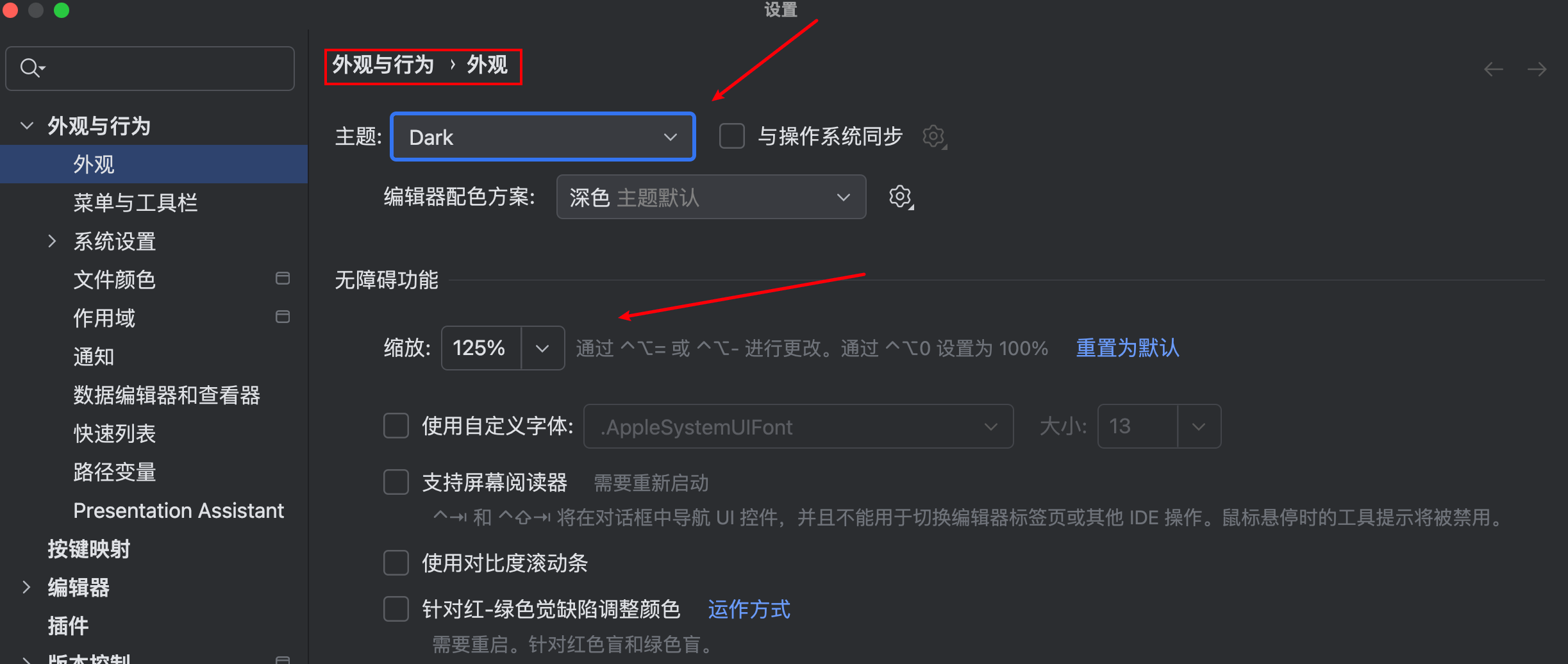
If you don’t like the themes, browse the plugin marketplace.
-
Auto‑format on save: Settings → Tools → Actions on Save → configure actions to run when saving.
-
Create live templates: Go to Editor → Live Templates → create your own code snippets.
There’s more to discover — the more you use it, the more you’ll build your own efficiency setup.
WebStorm’s Strengths
-
Built‑in Git is very powerful. In VSCode, if I do a local commit + merge, then there’s a remote commit with conflicts, it’s much easier to resolve in WebStorm via its Update and Push features. The commit diff view is also very clear.
-
Type hints — WebStorm warns about undeclared variables, unused variables, and detects non‑standard code.
-
Safe Delete (select file, ⌘ + Delete): It checks all usages and deletes them together.
-
Quick package info — hover over a package for a moment to see details.
-
The project tree shows
node_modulesanddistdirectories highlighted.
Which one do you think is better, WebStorm or VSCode?