
I built a plugin that takes the Bilibili and YouTube learning experience to the next level.
For the past few months, I’ve been binge-watching courses and English-language talks on Bilibili and YouTube about AI agents and large models—Karpathy’s long-form videos, Anthropic’s technical conversations, that kind of thing. I’ve also watched video podcasts like Zhang Xiaojun’s interview with Manus. But I’ve come to realize that video is just way too passive compared to reading articles. So while learning, I built a browser extension for myself. After using it for a while, I decided to share it with anyone who needs it—especially if you’re trying to learn hardcore tech from videos and finding it painful. If any of this sounds familiar:
- English listening and subtitles don’t line up: A lot of first-hand English material has no subtitles at all; the platform’s auto-translated subtitles are often chopped into fragments, and the stiff translations make it hard to keep up with the speaker’s pace and train of thought.
- Searching for a concept breaks your focus: When the video hits an unfamiliar term (like Function Calling or Context Cache), you pause, switch to the browser to search, and the recommendations and search feed pull you off track. By the time you snap back, 20 minutes have passed.
- Video is inherently harder to navigate than text: When you want to rewatch the part about the core architecture, you’re stuck dragging the progress bar back and forth, hoping you land in the right spot.
- The page is full of distractions: Danmaku, recommendation feeds, related videos, overlay ads—the page design was never meant to let you quietly “sit through a lesson.”
- You learn it and forget it, with nothing to show: It feels like you understood it at the time, but two days later when you want to write notes or review, you can’t even find which minute it was, which architecture diagram you screenshotted, or what questions you asked.
If these pain points hit home, I recommend giving Lumi a try. There are plenty of “AI summary sidebars” out there, but most just grab the subtitles and spit out a simple summary. They don’t solve the complete learning loop from “understanding” and “asking follow-ups” to “organizing and retrieving notes.”
So I spent time writing a browser extension for myself—Lumi. I honestly can’t watch courses without it anymore. Today I’ve put it together to share with fellow video-based learners.
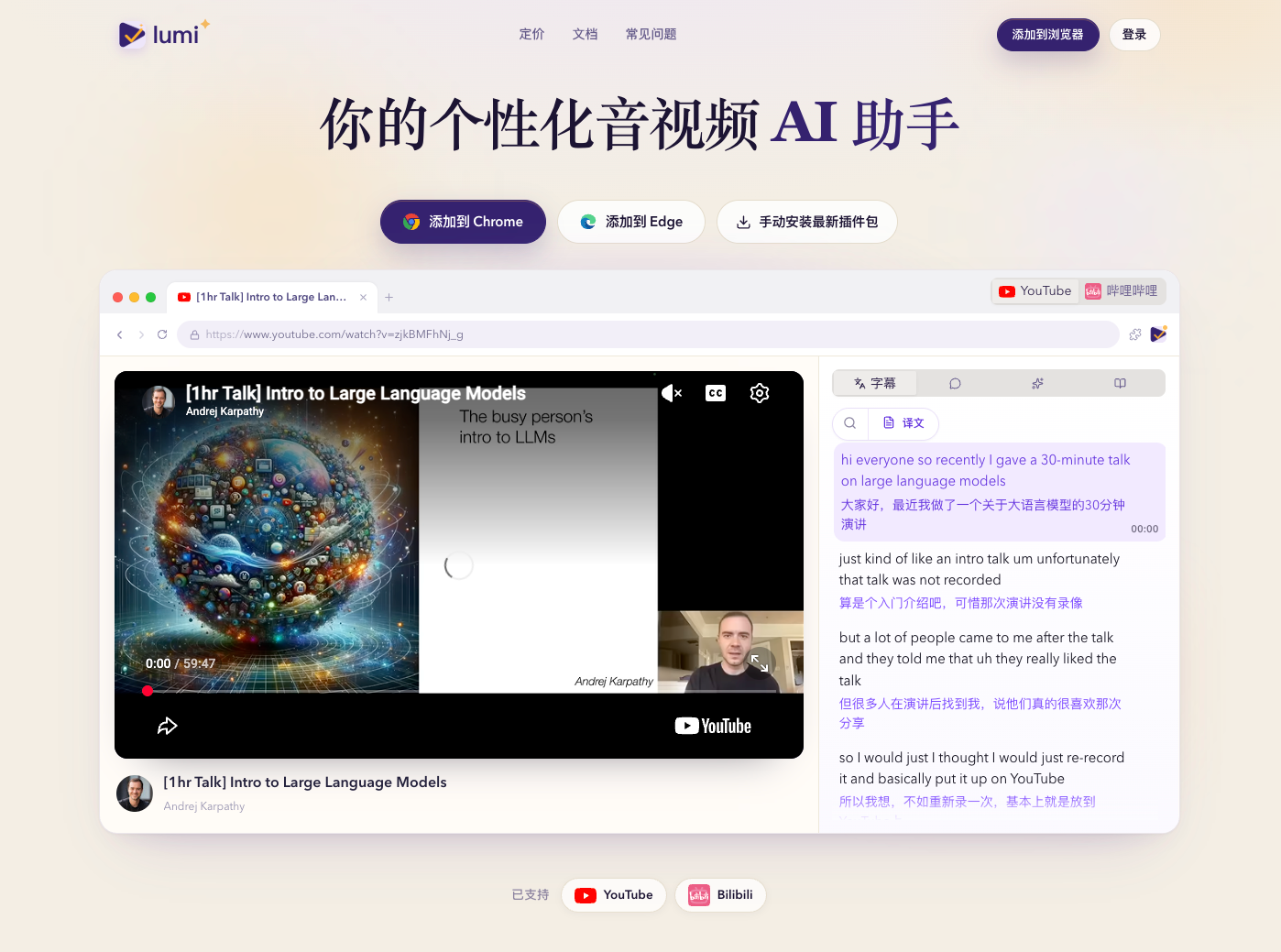
Official site: islumi.com
Installation and Usage
Lumi is a browser extension. Once installed, it appears when you open a Bilibili or YouTube video. No registration required to use it.
1. Installation
Its core capabilities live in the browser extension, so you’ll need to install it:
- Chrome Web Store: Add to Chrome
- Edge Add-ons: Add to Edge
- Official download page: islumi.com/download
Supports Chrome, Edge, and other Chromium-based browsers.
The Edge store updates slowly, so you can use the manual install package from the official site: islumi.com/zh-CN/edge/manual-install
After installing, click the puzzle icon in the top-right corner of your browser and pin Lumi to the toolbar. Clicking the icon shows your browsing history, settings, sidebar, and profile info.
2. Usage
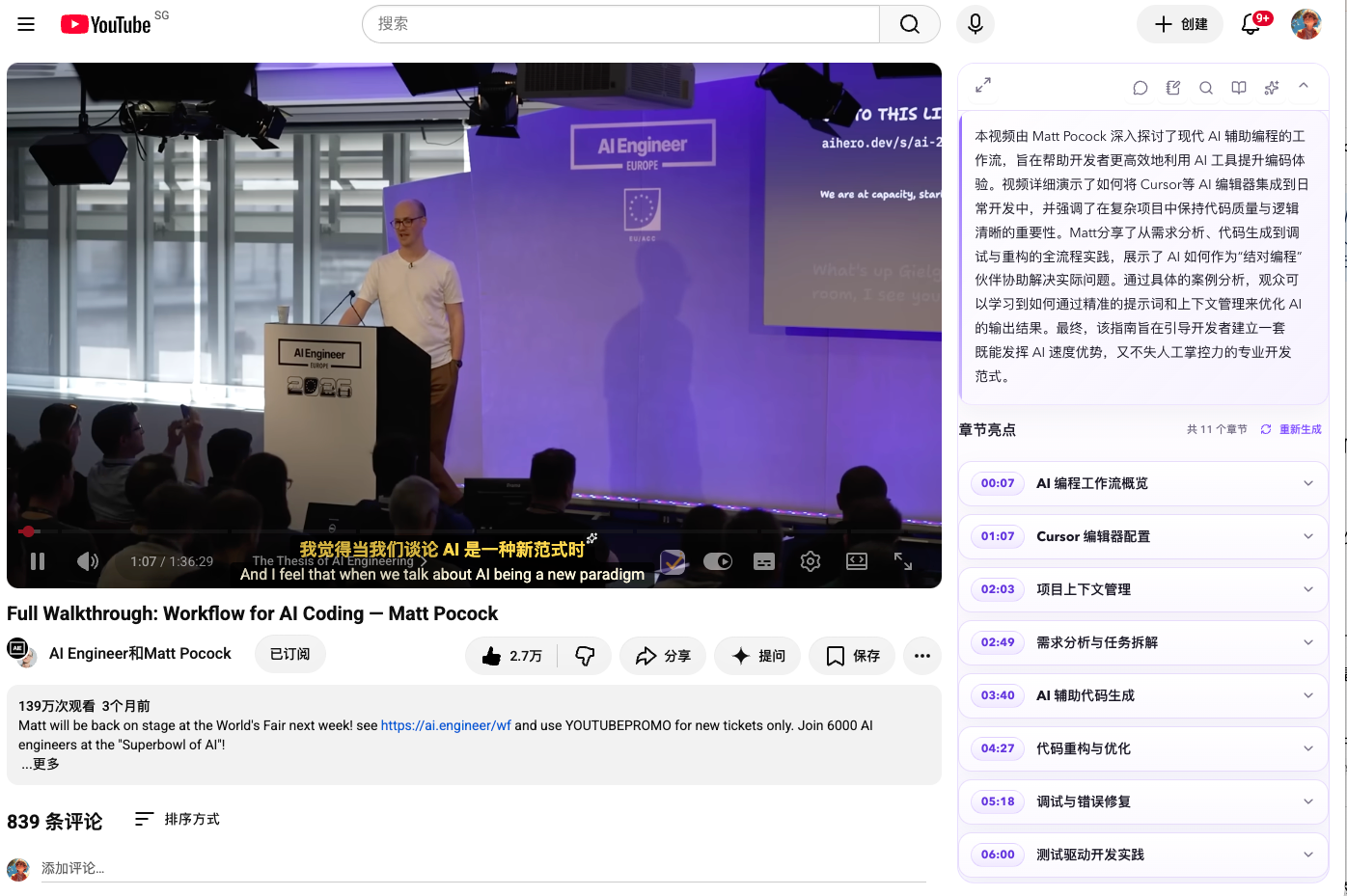
Open a video you’re watching on Bilibili or YouTube. A Lumi card appears on the right side, and within the video you get:
- Summary: A paragraph overview plus timestamped chapters
- Subtitles: Real-time subtitles below the video; the right panel supports subtitle search, bilingual comparison, and jumping to any line
- Transcript: The video reorganized into a readable, searchable, exportable article
- Chat: Ask questions about the current video, with answers citing source timestamps
- Notes: Jot down text and screenshots at the current timestamp, then export as Markdown
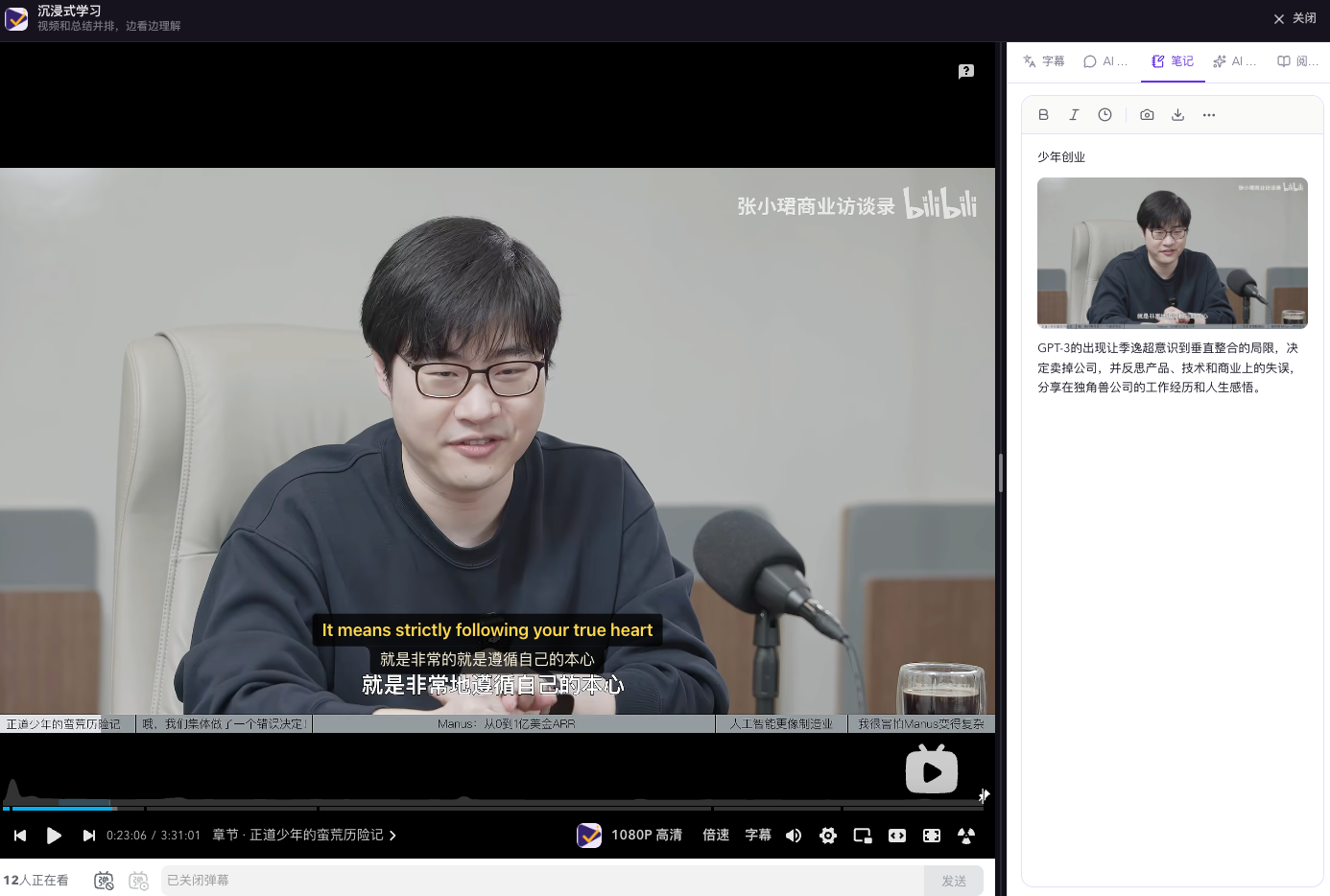
- Immersive mode: The biggest risk while learning is getting distracted and losing momentum. Immersive mode lets you focus purely on the video and your learning.
YouTube:
Bilibili:
For more, check the docs: islumi.com/docs
3. Login and AI Services
You can use Lumi in two ways:
- Zero config: Register and log in, then use Lumi AI. Free accounts get 200K tokens and a 7-day membership.
- Bring your own key: Fill in your own DeepSeek, OpenAI-compatible, Anthropic, or Gemini key in the custom settings. You get the full Lumi experience either way.
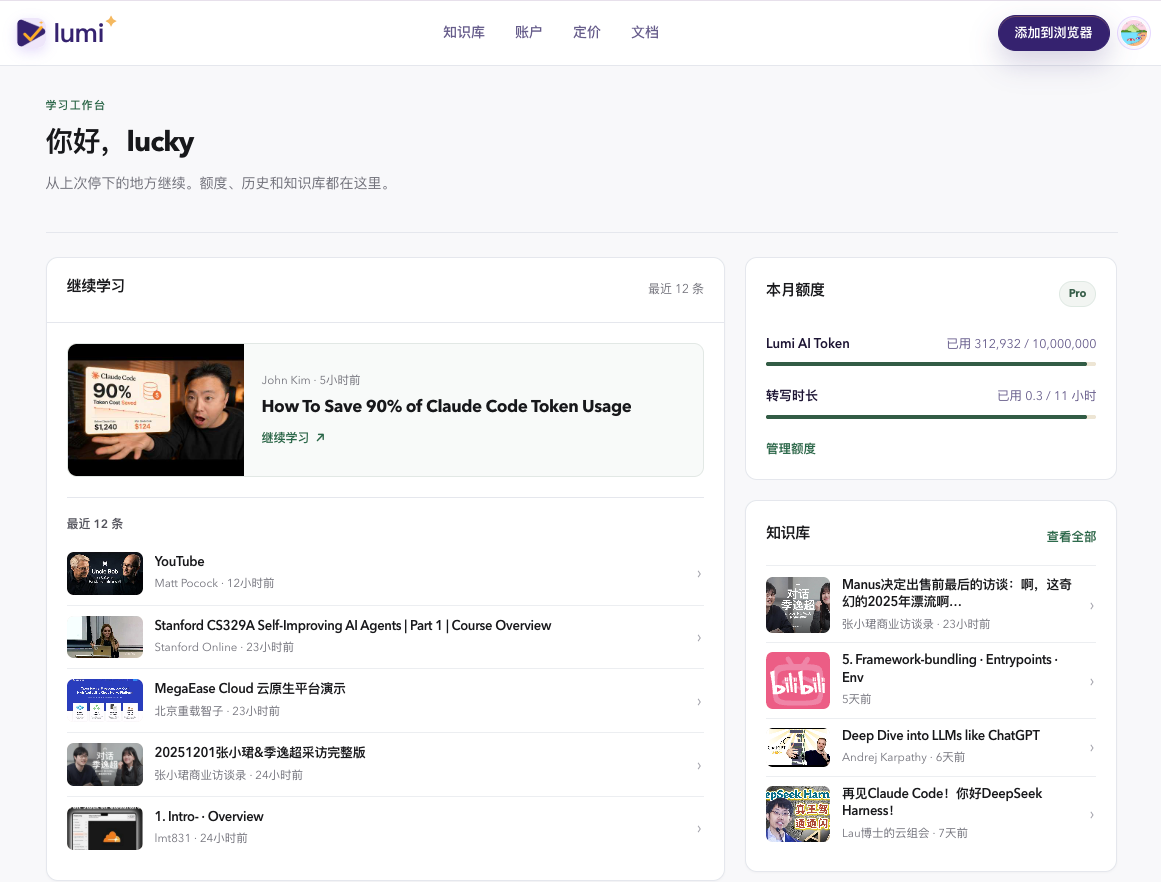
Once you log in, the official site islumi.com becomes your learning dashboard: recently watched videos, knowledge base, and token/transcription quotas are all visible there.
Useful Features
Let’s look at what Lumi can do.
- Bilingual subtitles + subtitle generation for videos without them
After installing Lumi, watching Bilibili or YouTube videos shows real-time bilingual subtitles at the bottom of the video. You can choose which languages to display and use AI for high-quality translation. To accommodate different preferences, I built a settings panel where you can adjust font, position, color, and more. I’ve also included several preset combinations for those who’d rather not fiddle with settings.
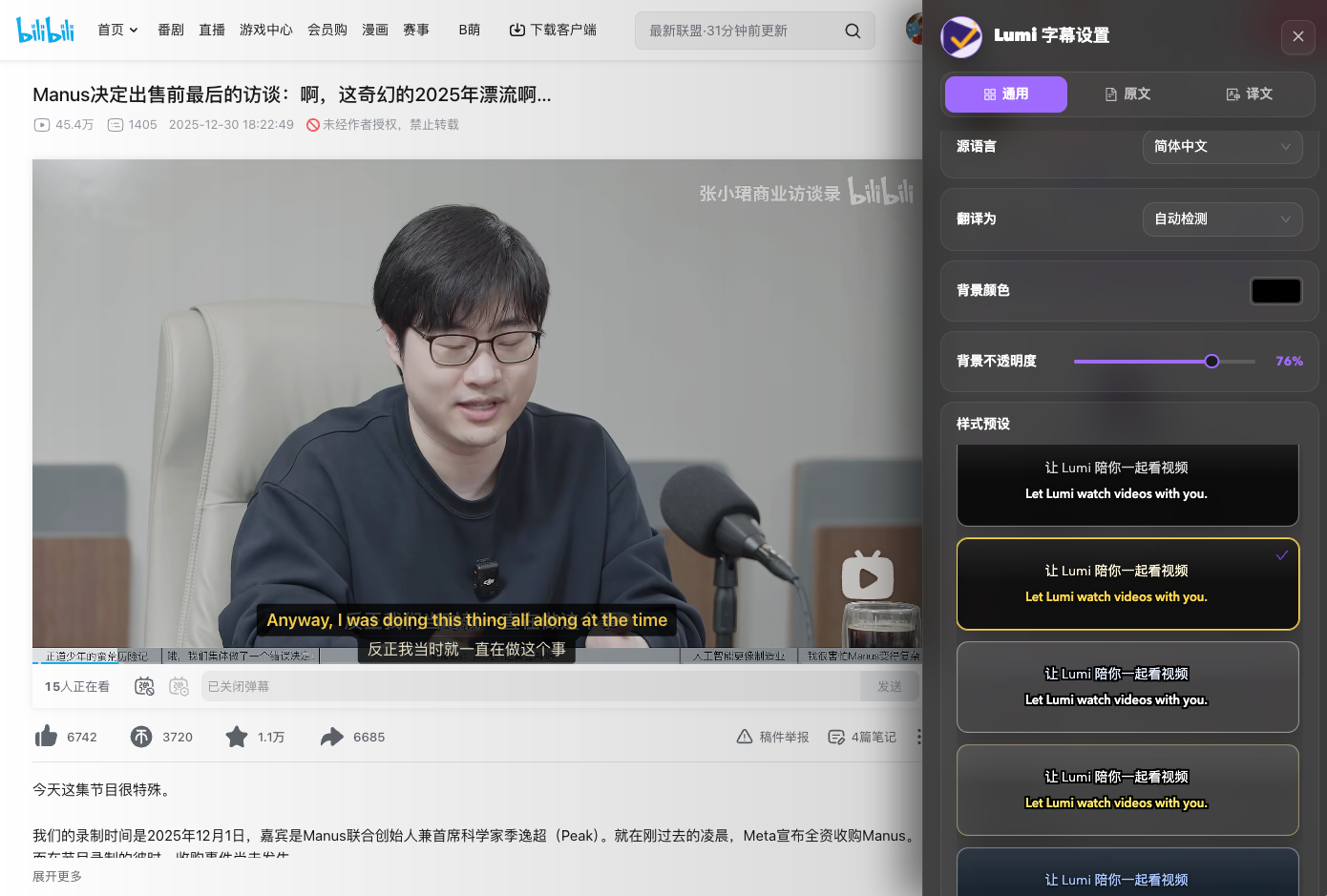
If you’re a heavy Bilibili user, you’ve probably noticed that many videos there have no subtitles at all. So I added subtitle transcription—even for a video without subtitles, Lumi can generate them.
Beyond translation and display, there’s another powerful feature: AI-powered subtitle segmentation. If you watch a lot of videos, you’ve seen how official subtitle breaks often land in weird places, hurting readability. AI-based segmentation dramatically improves the reading experience. Transcribed subtitles are also stored, so if you’re a member, you can use subtitles that others have already transcribed for free.
- Video Q&A: no need to switch tabs to search

While watching, you’re bound to hit new terms, unfamiliar concepts, and open questions. Without Lumi, you’d have to go search and dig around. But in the Lumi chat panel, you can ask about the current video directly, for example:
- “What is this video mainly about?”
- “What’s the difference between Agent and Workflow here?”
- “Find the part where he explains tool calling.”
Answers are grounded in the subtitles and include clickable timestamps. Click one to jump straight to the original line—no more gambling on the progress bar. You can also run multiple separate conversations on the same video, and come back days later to continue asking without rebuilding context. AI chat works whether the video is ten minutes or three hours long.
One more feature I find genuinely useful: the subtitle list on the right side is searchable, which is also a great way to quickly skim a video.
- Summary and transcript: browse a video like an article
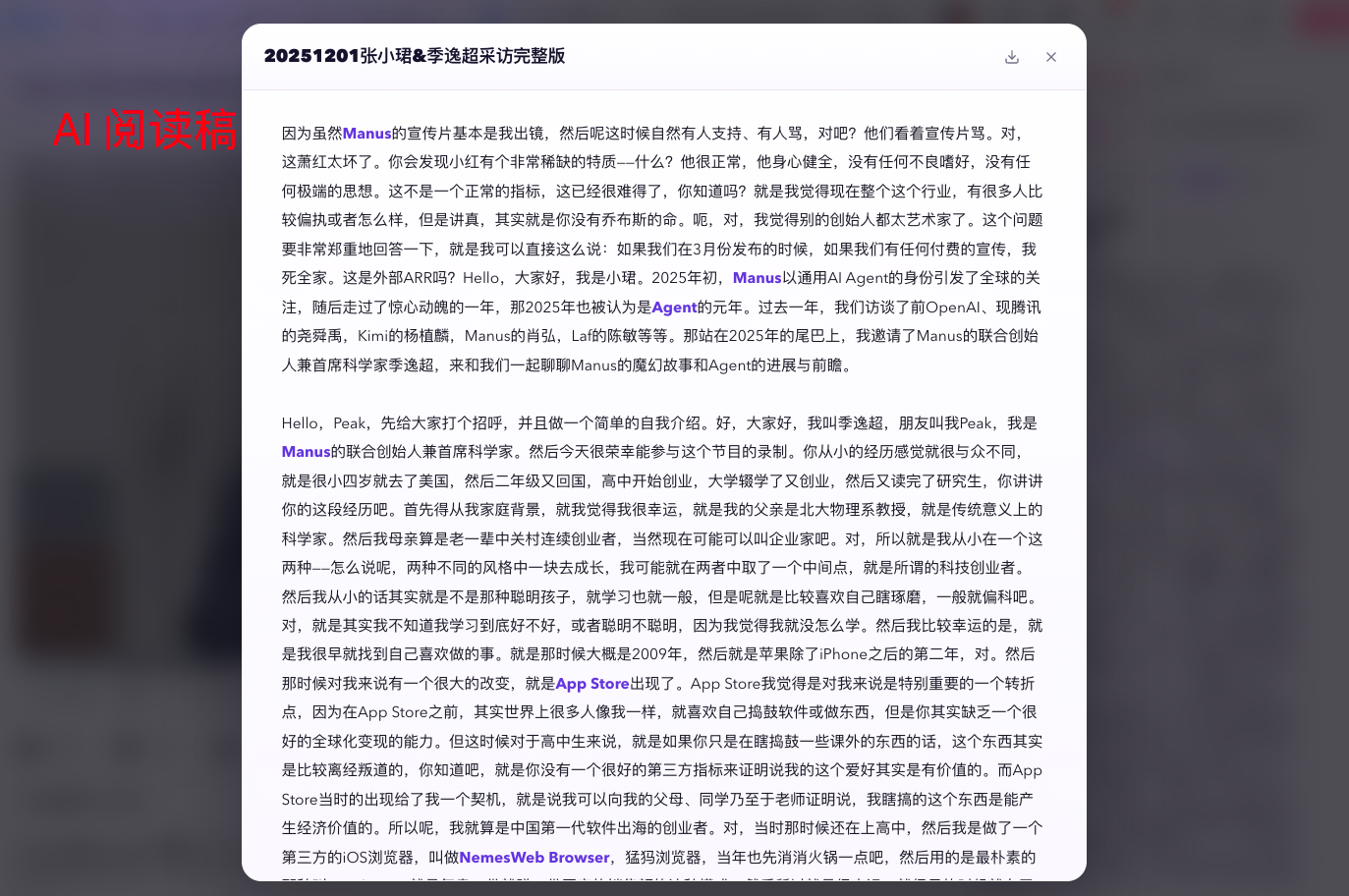
The most draining part of long videos is not knowing “is this hour worth my time.” With Lumi, you can generate an outline and summary to clearly see what each section covers. You can also generate a transcript: the entire subtitle track is reorganized into a well-structured article, so you can absorb the video’s content by reading.

- Immersive mode: keep the recommendation feed and ads out of sight
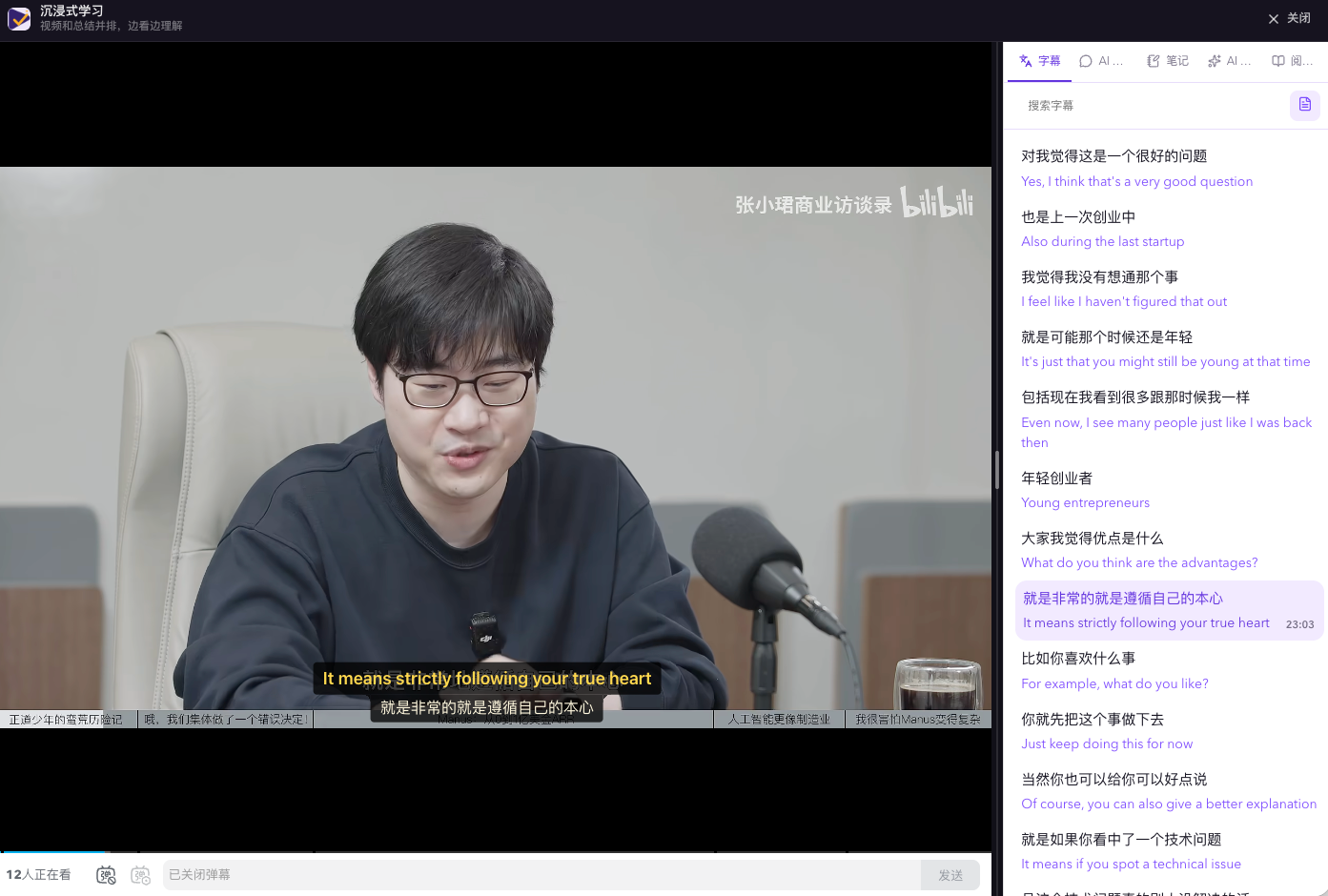
The recommendation feeds and surrounding content on Bilibili and YouTube are attention vampires. Click Immersive mode in Lumi, and the page transforms into a clean two-column layout: video on the left, Lumi’s tools on the right. Nothing else on the page can pull you away from the lesson.
- Courses you’ve watched stay findable: notes and knowledge base
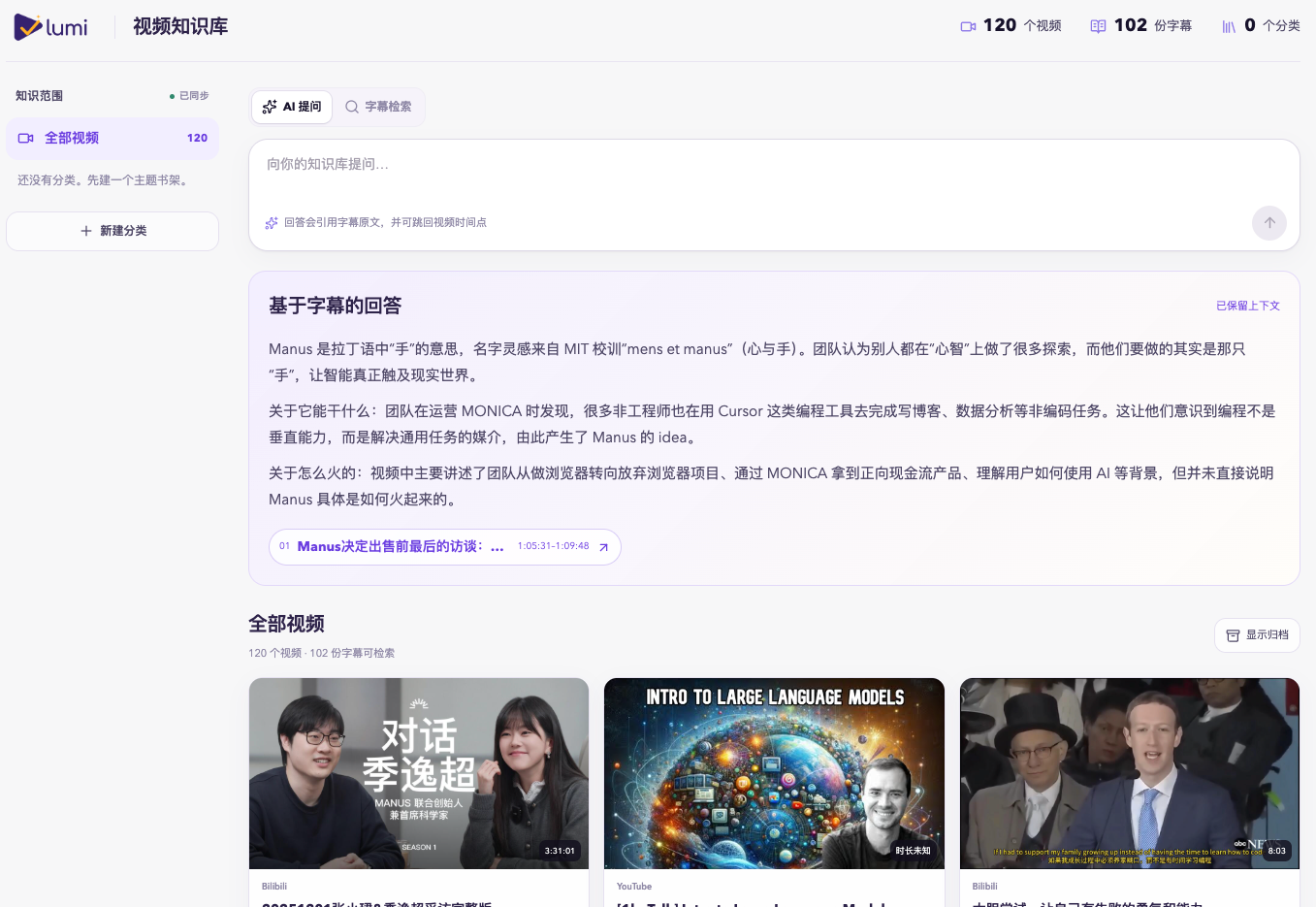
Lumi keeps a record of everything you’ve browsed:
- Watch history: which videos you’ve studied recently. The extension popup lets you search by title and author, and syncing works across devices once you log in.
- Video notes: write text while watching, insert the current timestamp, and capture a screenshot of what’s on screen. Notes can be exported as Markdown.
- Knowledge base: Lumi collects the videos you’ve watched, so you can search across subtitle content and ask AI questions spanning multiple videos.
- Web dashboard: after logging in at islumi.com, the homepage shows your recent videos, knowledge base, and quotas—no need to dig through the extension.
Even without logging in, we do our best to store the content you’ve browsed.
- Free AI chat in the sidebar
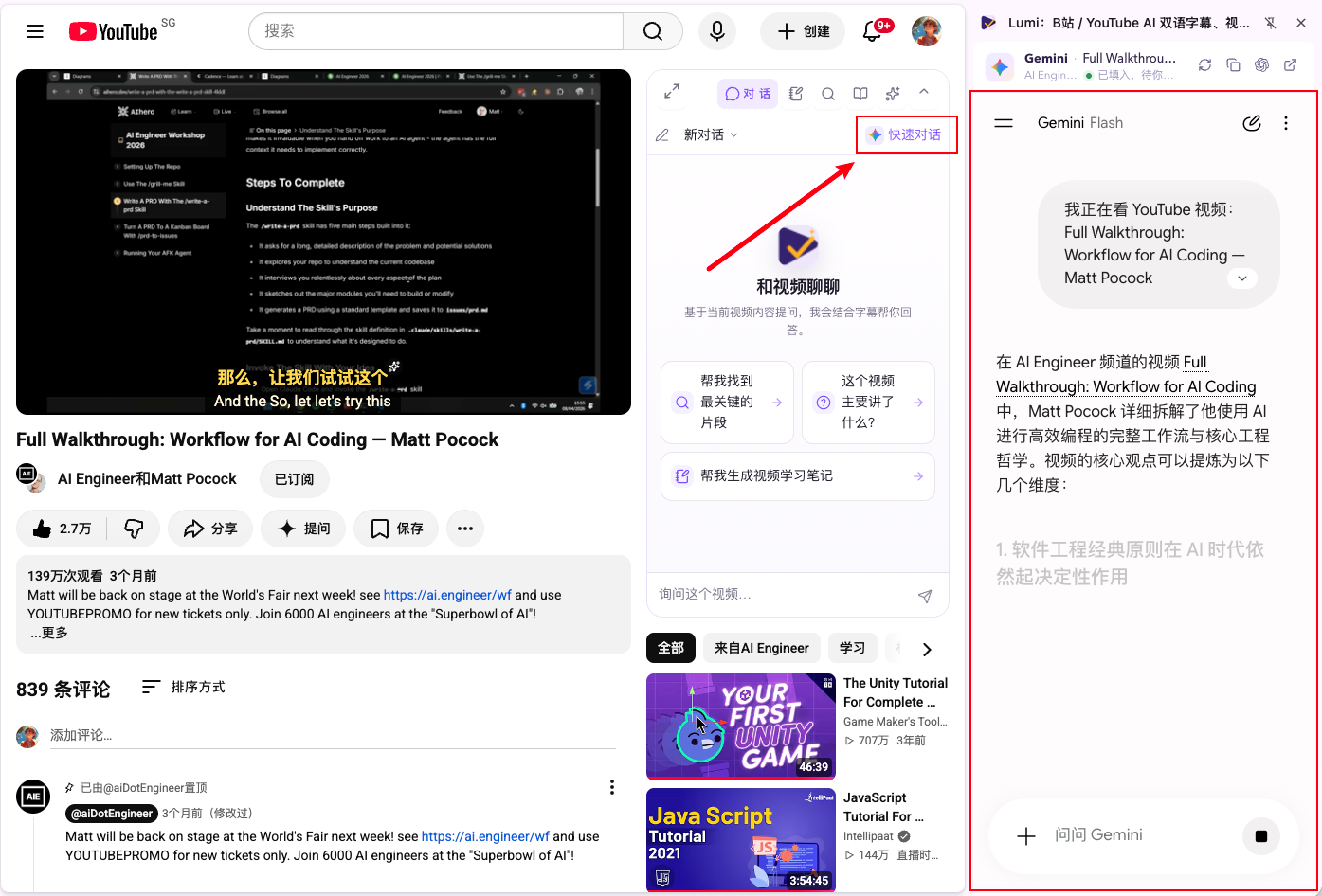
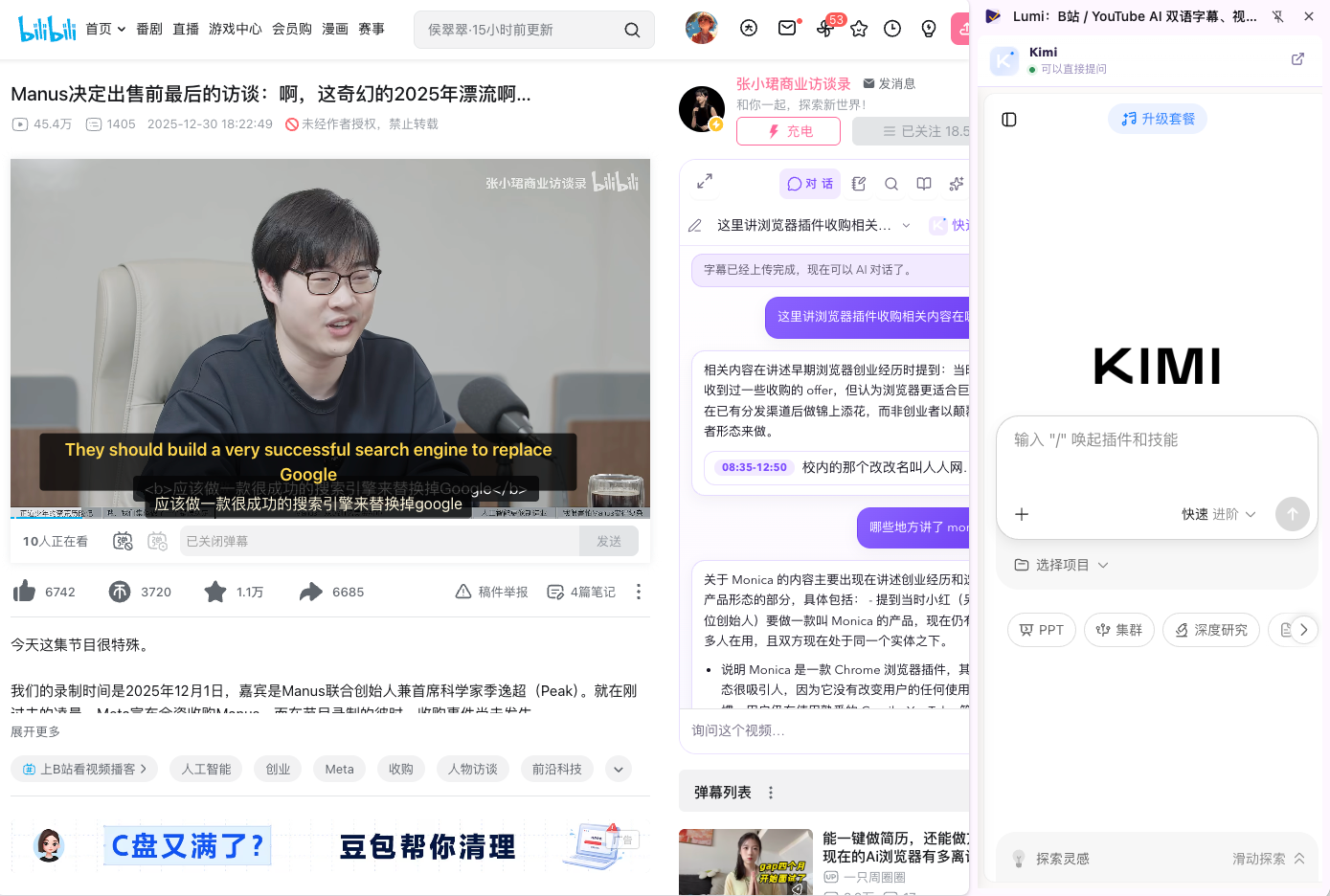
Beyond Lumi’s built-in AI chat, you can click the “Quick chat” button in the top-right corner of the chat panel to use official Gemini or Kimi in the sidebar. This gives you AI capabilities without consuming your own key or Lumi’s quota.
Gemini quick chat:
Kimi quick chat:
Summary
By now, you should have a clear picture of whether Lumi fits your workflow. It’s a video learning assistant that helps you extract the knowledge you need faster, cuts down on the friction of switching windows, and—especially in the AI era, where patience and attention are easily drained—protects your focus and improves the overall video learning experience. It closes the loop:
Understand the subtitles first → grasp the structure → ask your questions on the spot → block distractions when needed → save your notes → find them again later.
If you regularly learn AI, English, or any subject through video, install Lumi and try it on the video you’re currently watching.
If you have questions or feedback, feel free to add me on WeChat: RELEASE500. And if you find it useful, please share it with friends who learn from videos.