After Consuming 100 Billion Tokens in Codex, It's No Longer Just a Coding Agent
Unlocking Codex’s full potential
Original: https://x.com/jxnlco/status/2057153744630890620
Author: jason (@jxnlco)
Published: May 21, 2026 at 1:37 AM
Most developers initially turn to AI coding agents for pure code tasks: exploring codebases, generating diffs, running tests, and submitting pull requests (PRs).
That’s still Codex’s core strength today. But many tasks on a computer are already accomplished indirectly through code: running terminal commands, browsing the web, calling APIs, exporting documents, responding to events, and triggering automated workflows. As these interfaces become increasingly accessible to Codex, it feels less like a narrow code assistant and more like a full-fledged system for getting things done on your computer.
The Codex app makes this shift tangible. A thread can persistently retain context, invoke tools, present artifacts, and execute continuously across multiple prompts without needing to reset after each conversation.
To get the most out of Codex, the key is combining the following capabilities:
- Persistent threads: preserve context intact.
- Voice input, instant guidance, and task queuing: keep users deeply engaged while operating more efficiently.
- Browser, computer-use, MCP servers, and connectors: extend Codex’s reach beyond the codebase.
- Thread automation and the Goals feature: let work continue even when you’re away from the computer.
- Sidebar: lets you review code, documents, slides, and other artifacts in place.
持久化对话流(Durable threads)
持久化对话流:长期运行的 Codex 对话流,能跨越多次使用会话,完好保存工作上下文。
把常用对话流“固定”(Pin)起来,是将其留在手边随取随用的好办法。这非常适合那些周期性的工作流,例如:
- 幕僚长(指的是组织里统筹协调、替核心负责人打理各项事务的核心助手/总管角色)对话流
- 版本发布对话流
- 文档评审对话流
- 专门用于外部监控的对话流
这些是持久化的工作空间,而非用完即丢的简短聊天。Codex 可以随着时间推移反复复盘这些对话,记住先前的决定、偏好和工作上下文。如果没有这项功能,每次开始新任务都得把这些背景信息从头重建一遍。
固定对话流的快捷键让这一切变得非常实用。按下 Command-1 到 Command-9,就能直接跳转到你保存的各个对话流中。
Voice Input
The value of voice input lies in its ability to capture the raw, rough shape of an idea, avoiding the loss of inspiration that often comes when you try to polish it into tidy text.
Codex has voice input built in. It really shines when you have a vague thought that’s natural to say but tedious to type:
I think there was someone named Ben in Slack who mentioned this. I can’t remember the details. Go look it up for me.
For an agent that can search, gather context, and report back, a single sentence like that is often enough.
A two- or three-minute “thought dump” works great before the task is fully nailed down.
The same goes for meeting transcripts. An unpolished shorthand transcription or a verbal planning note usually provides richer, higher-quality raw material than a concise summary, because it preserves uncertainty, tone of voice, and unfinished thoughts.
Steering and Queuing
The real power emerges when voice input is combined with explicit control over ongoing tasks.
Steering: Jumping in with new directional guidance while Codex is still executing a current step of an ongoing task.
Steering is useful when the agent goes in the wrong direction and needs correction before completing the full workflow. For example, while reviewing a website, a user can annotate the interface in the sidebar and interrupt directly:
- Make this a bit smaller
- The spacing between these two elements feels off
- This copy is wrong
Queuing: Adding follow-up tasks for Codex to execute in sequence after the current step finishes.
Queuing is different. It doesn’t interrupt the work in progress; instead, it appends the next task to a queue. The user might say:
When the work is done, send the preview link to the reviewer on Slack.
Steering changes what Codex is doing right now; queuing changes what should happen next. Both approaches let the user maintain tight control as the work unfolds.
Tools and Reach
Once a conversation stream has continuity, the next question is what it can be used for. Codex’s capabilities can ripple outward layer by layer:
- $browser: A built-in browser for the sidebar that Codex can use to inspect web pages and annotate their interfaces.
- @chrome: For logged-in browser states and Chrome-based workflows.
- @computer: For tasks that can only be done through the desktop GUI.
$browser is perfectly suited for reviewing web pages in the sidebar. @chrome is ideal for web operations that rely on the user’s Chrome personal environment and require login states. @computer handles tasks that can only be accomplished by clicking around desktop software with a mouse.
MCP (Model Context Protocol) servers and connectors extend the same concept to other parts of the workflow. Slack, Gmail, and Calendar are critical because many core tasks begin as a message, an inbox email, or a scheduling conflict before they become code.
“Skills” allow repeatable workflows to be reused. Once a workflow is proven effective, you can package it as a skill, so that Codex can run it directly next time without needing to learn the routine from scratch.
Work from Anywhere
The Codex mobile app removes the constraint of being stuck at a desk. You can start a task on your Mac—with all your existing files, permissions, and local configuration—and then step away and follow along from your phone whenever you’re out.
This matters in small but meaningful moments. When Codex is running a long task, you can leave your desk with confidence, answer its questions from anywhere, approve the next steps, or steer the conversation in a new direction before you head back. The local environment keeps running steadily, so you’re no longer chained to your computer.
Automation
The automation feature allows Codex to run tasks on a scheduled basis. If a recurring job needs to start from a clean workspace each time (e.g., a daily report or periodic codebase inspection), use scheduled automation. If you need a scheduled task to return to an active thread that preserves runtime context, use thread automation.
Thread automation: a periodic wake-up call similar to a heartbeat mechanism — it returns to the same Codex thread on a schedule.
Persistent threads are convenient, but they still passively wait for the user to come back. Thread automation, on the other hand, can check something every few minutes or hours, keep running until specific conditions are met, and automatically adjust the check frequency over time.
A “chief of staff” thread might run every 30 minutes:
Check Slack and Gmail every 30 minutes for unanswered messages that need my attention. Help me prioritize them. If someone asks me a question, research the answer as thoroughly as possible and draft a reply, but don’t send it yet.
When the user returns to their computer, the most labor-intensive “context gathering” phase is usually already done. The human only needs to make the final decision: click send.
Thread automation is also ideal for “feedback loops.” It can keep an eye on pull request comments, Google Docs annotations, or Slack replies, keeping the surrounding helper work moving forward while the user is away.
Imagine an animation workflow where a reviewer shares a video in Slack. Thread automation can periodically check that conversation, automatically render an updated version when new revision comments arrive, and reply in the same conversation with an @mention of the reviewer. If a particular integration can’t complete the final upload, desktop automation can seamlessly take over and finish the last step through the GUI.
This closed loop spans Slack for feedback collection, the codebase for rendering, and desktop automation for the final upload.
Goals
When a task has a clear finish line and the agent can work steadily toward it, the Goals feature unlocks tremendous power. Here’s a suboptimal goal definition:
Goal: A longer-running Codex task with a finish line that an agent can persistently work towards over time.
❌ Suboptimal definition: Implement the plan in this Markdown file.
A more powerful goal should include measurable success criteria.
For example, an engineer migrating an internal tool from Python to Rust can set up a new directory, define the goal, and make the finish line concrete: the new implementation is only done when all unit tests pass.
A Goal perfectly combines persistent execution with a validator. The user defines the final outcome, the stopping condition, and the feedback signal that shows whether Codex is getting closer to the target.
Useful validators include:
- Test suites
- Benchmarks
- Bug reproduction scripts
- Verification matrices
- End-to-end (E2E) workflows that must keep functioning smoothly
Ambition is important, but without a validation mechanism, a goal is just a wish.
Sidebar
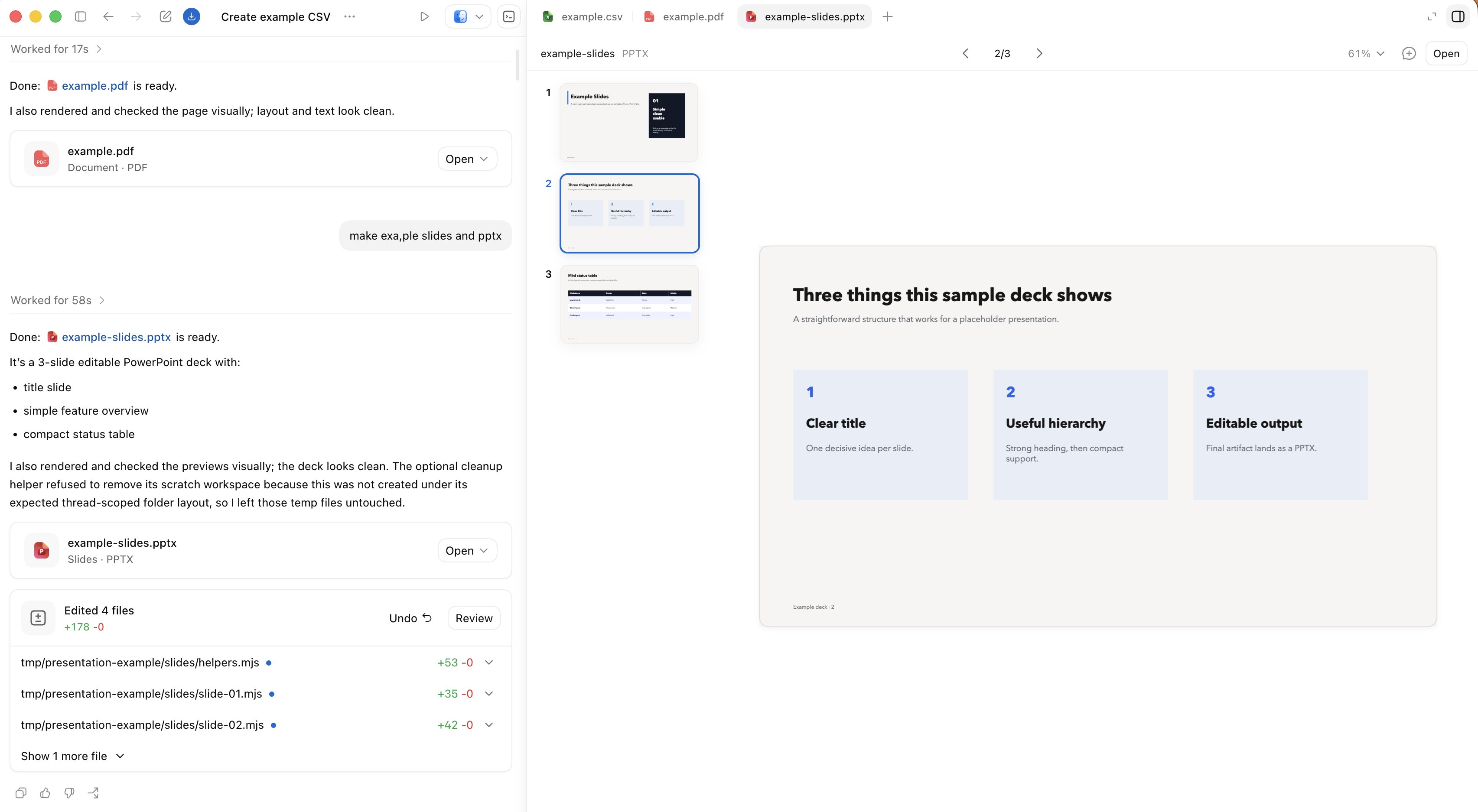
The sidebar shows your work alongside the conversation that produced it. Users don’t need to export files or switch apps; they can review everything right where it was created. The output might be code, but it could also be a slide deck, a PDF, a web page, a spreadsheet, or any other artifact created during the process.
It excels at four tasks:
- Inspect artifacts
- Annotate areas to fix
- Interact with web interfaces
- Review changes
With the sidebar, users can review Markdown, spreadsheets, data tables, documents, and slide decks in place. They can inspect, annotate, and modify artifacts without breaking the existing workflow loop.
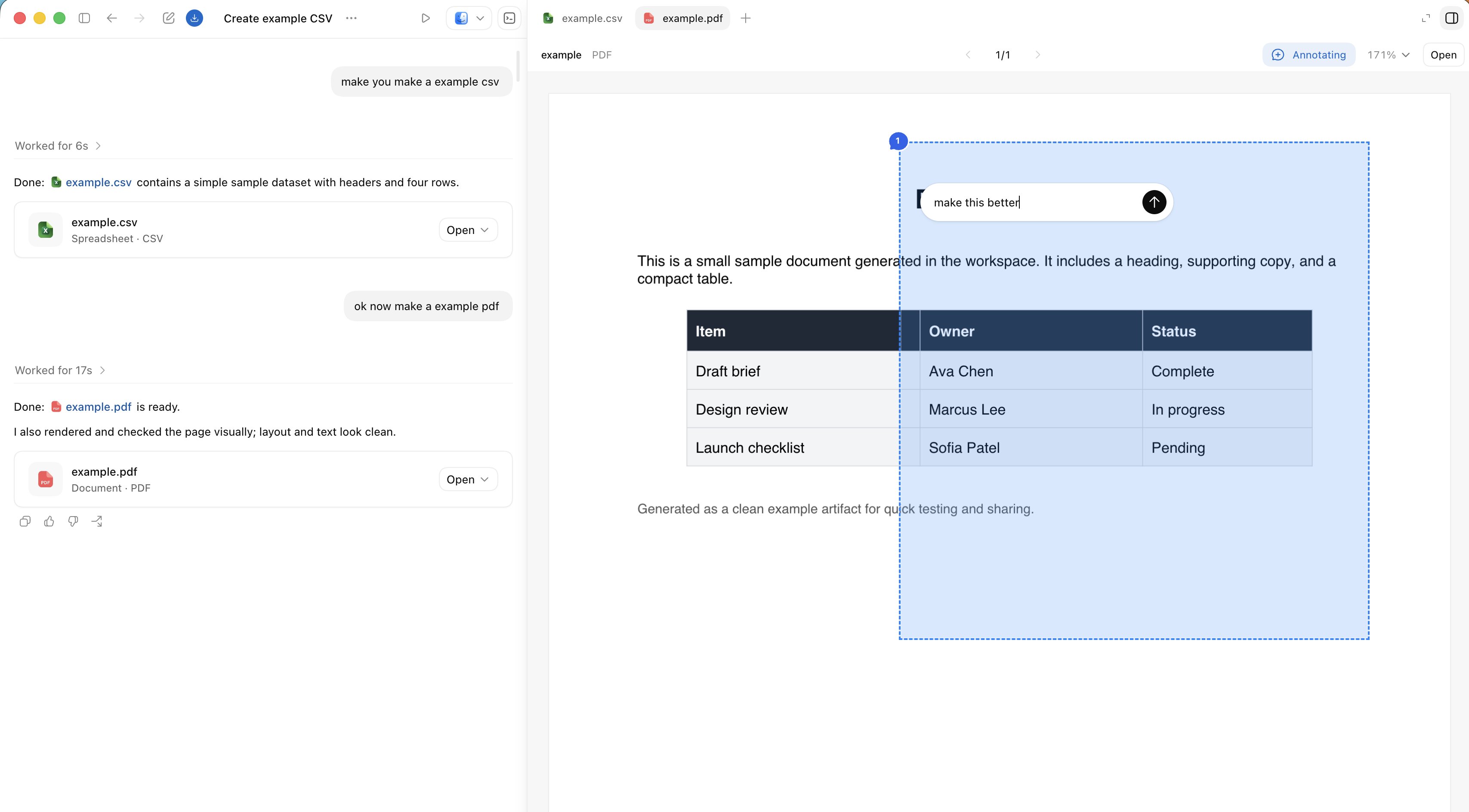
Annotation feature
Slide decks or PDFs can stay open right next to the conversation that produced them, ready for direct review and fixes.
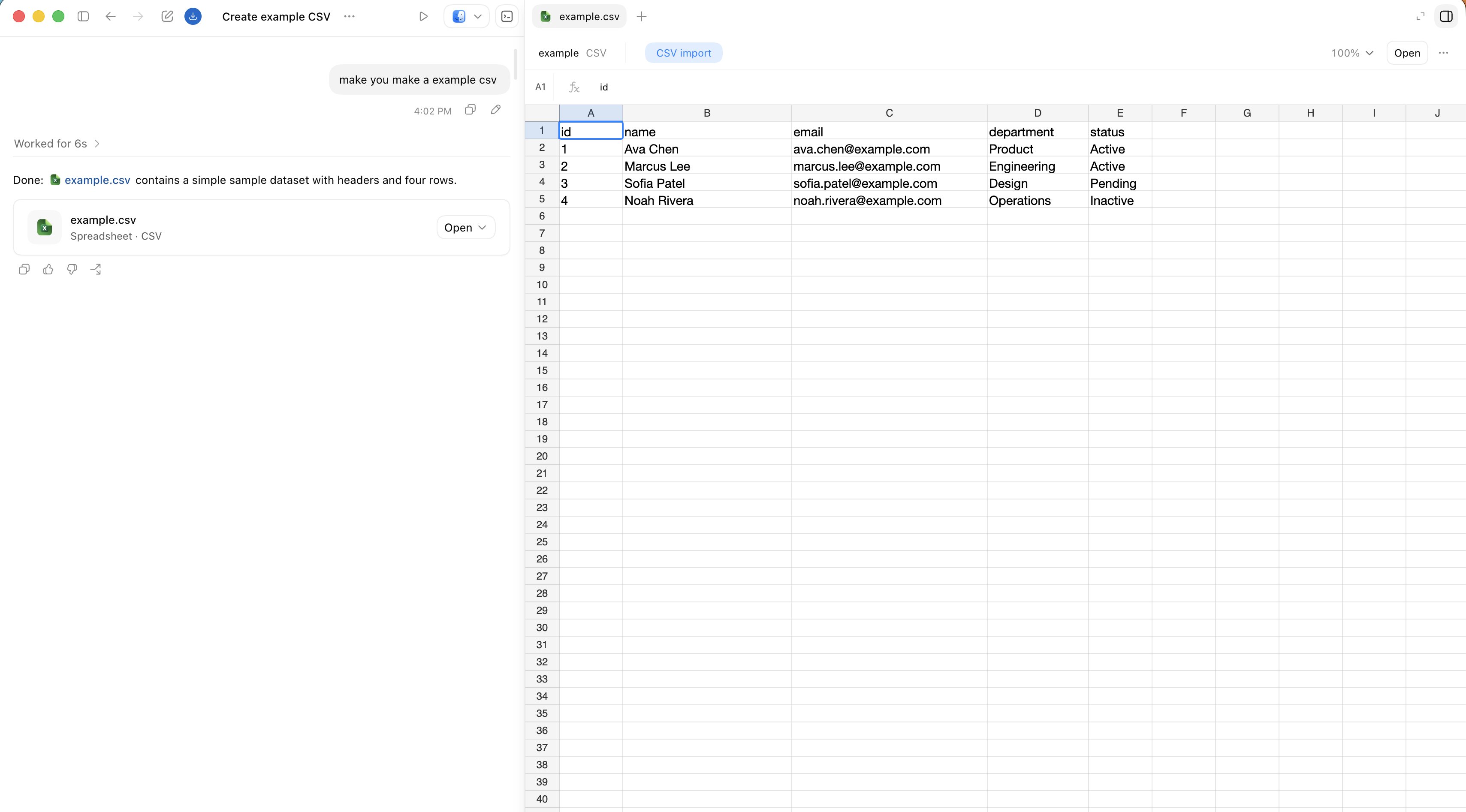
Spreadsheet in Codex
The in-app browser lets Codex inspect rendered pages, control them, and respond directly to annotations on the interface being reviewed. Comments on a page or artifact stay inside the workflow instead of becoming a separate task that has to be handed off.
At that point, the web is both the output and the control interface. Codex can build an artifact, open it in the sidebar, inspect it, debug it, and keep iterating on the same object in place.
These interface forms work especially well in practice:
index.htmlfor lightweight static artifacts- Storybook for UI review
- Remotion Studio for programmatic animations
- Browser-based slide decks for presentations
- Data applications for analysis workflows
A simple index.html file can become a persistent interactive artifact, without needing any server support. Workflow automation can also refresh these static artifacts in the background at any time, so when the user returns, the conversation holds fresh results ready for review.
Shared memory
Long-running conversations become far more useful when they can share memories beyond a single dialogue.
Shared memory: persistent context stored outside a single conversation flow, so future work can resume from a clear, reviewable foundation.
One battle-tested persistence pattern is anchoring long-lived context in an Obsidian vault. In practice, this means a folder of plain text files that is highly intuitive, easily reviewable, editable, movable, and durable over time. Teams can store the folder on cloud storage, Git, Dropbox, Google Drive, or any sync layer that fits their workflow.
A vault structure might look like this:
vault/├── TODO.md├── people/├── projects/├── agent/└── notes/At the root, you can use an AGENTS.md file to tell Codex how to update this workspace — as it learns more about people, projects, decisions, and unfinished tasks.
Don’t blindly copy a one‑size‑fits‑all vault structure. Instead, teach the agent: where persistent context should live, which background information matters, and when not to create unnecessary file changes.
A pragmatic AGENTS.md might read:
- Treat ~/vault as persistent working memory.- Lean toward authoritative core notes; avoid sprawling clutter.- Categorize TODOs, people, projects, daily summaries, and scratch notes.- Save decisions, blockers, owners, dates, and helpful links.- Don't touch the vault unless something meaningful actually changed.The codebase holds code. The vault holds rolling context: the people involved, what changed, what’s stuck, what needs follow‑up, and the bits of information that would vanish if not captured between sessions.
Core context shouldn’t live in a single chat history. Write it somewhere so the next conversation flow can pick up seamlessly.
Codex also offers a native memory feature under Settings > Personalization > Memory. It provides a local memory recall layer for personal preferences, common workflows, and known pitfalls. This complements explicit written context rather than replacing it. The Chronicle feature also pushes in this direction, helping Codex build memory from context shown on recent screens.
Extending outward from code
Codex still starts from code. But now, more peripheral tasks around code can be reached through the same system: MCP servers, browser interface, desktop control, conversation flow automation, and outputs that can be reviewed in place.
This fundamentally reshapes the control model. Immediate guidance can interrupt ongoing work; task queuing arranges subsequent tasks in order; conversation flow automation keeps the conversation active when the user steps away; and the “goal” feature provides a clear finish line for Codex to keep working toward.
Now, even when the work is completely detached from the codebase itself, Codex can carry your workflow seamlessly from “receiving instructions” to “execution” and ultimately to “result review.”
Finally, here is my Codex usage record